Row-Bot Documentation
Row-Bot is a local-first desktop AI assistant for people who want models, memory, tools, workflows, design, code help, integrations, and voice in one controllable app. This guide explains how to install Row-Bot, choose a model path, use the main interface, configure settings, and understand what happens when Row-Bot uses external services.
These pages describe Row-Bot 4.5.0, the current stable release represented by this source tree.
Start Here
- Getting Started explains the install path, first launch, and setup choices.
- Row-Bot Interface tours the sidebar, thread list, Home tabs, Activity Center, Buddy, Settings, and terminal.
- Chat explains conversations, composer controls, attachments, model selection, approvals, and tool results.
- Settings explains every configuration tab and what each choice changes.
- Profiles, Goals, And Agents explains reusable roles, bounded goals, and delegated work.
- Computer Use explains the opt-in native desktop tool, setup, live controls, and safety boundaries.
Feature Guides
- Workflows for repeatable background work and scheduled agents.
- Designer Studio for creating pages, slides, mockups, branded assets, and exportable designs.
- Developer Studio for folders, repositories, code chat, inspectors, commands, and sandbox modes.
- Knowledge for local memory, documents, graph review, and background organization.
- Computer Use for target-window automation in native Windows and macOS applications.
- Android And Native Desktop for pairing, mobile Chat and Activity, and native-only behaviour.
- Monitor for logs, journals, channel state, and background activity.
- Skills Hub for browsing, enabling, creating, and reviewing skills.
- Channels, MCP, and Plugins for integrations.
- Extend Row-Bot to choose safely between Skills, Custom Tools, plugins, MCP, channels, and accounts.
- Operations, Data, And Recovery for backups, restore, updates, repair, uninstall, and diagnostic sharing.
- Voice and Buddy for speech input, Talk, Dictate, read-aloud, and the visual companion.
How To Read These Docs
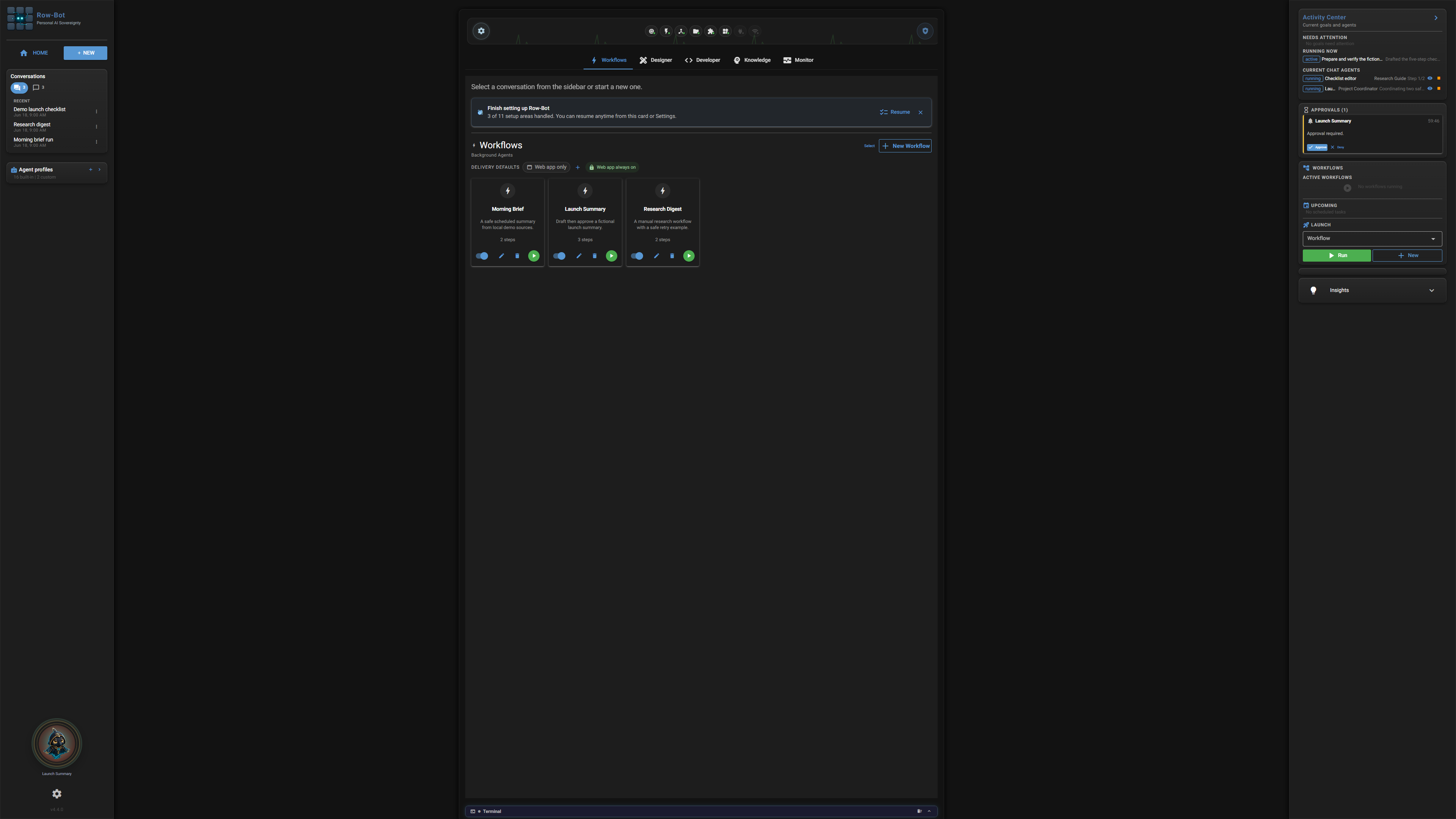
Each major page explains what the feature is, where to find it, the important controls, a common workflow, what is saved, privacy and safety implications, and troubleshooting. Screenshot captions describe the product UI so you can connect the text to what you see in the app.
References
Use Reference when you need tables of tools, providers, settings tabs, channels, skills, MCP servers, plugins, storage, or approval behavior. The guided pages should be your first stop; the reference pages are for lookup.