Tools, Approvals, And Terminal
Tools are actions Row-Bot can take beyond writing text. They can search documents, read files, use a browser, run commands, work on designs and code folders, inspect knowledge, call MCP servers, use plugins, or send through channels.
Progressive Discovery
With the recommended Auto capability-loading mode, core tools remain available under the active profile while Row-Bot searches enabled MCP, plugin, Custom Tool, and channel tools only when a request needs them. This keeps large external schema catalogs out of unrelated prompts.
Discovery does not widen permissions. The selected provider, Agent Profile, workspace policy, approval mode, and execution budget still apply. Live and reopened traces group results under the real integration name. See Progressive Tools And Skills for the complete flow and the eager compatibility option.
How Tool Use Appears
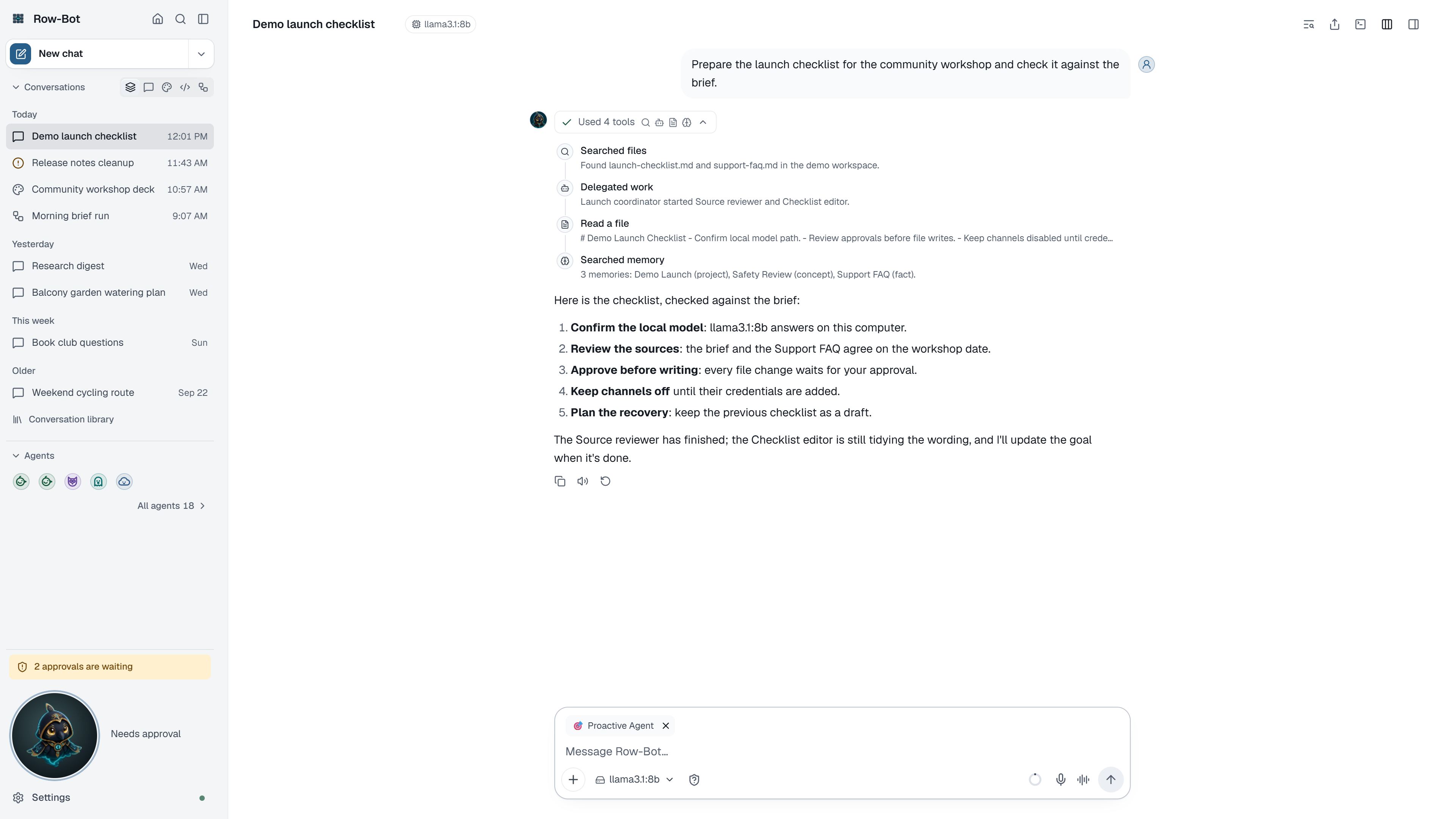
When Row-Bot uses tools, the turn shows a tool step: what Row-Bot tried, what came back, and whether more action is needed. A step that used an app starts with that app's logo and name. Open it for each call's details. Each result also records whether approval was needed, given or denied, so Row-Bot reports it truthfully. A denied action shows as skipped, never as done, and Row-Bot is told that it did not run.
Approvals
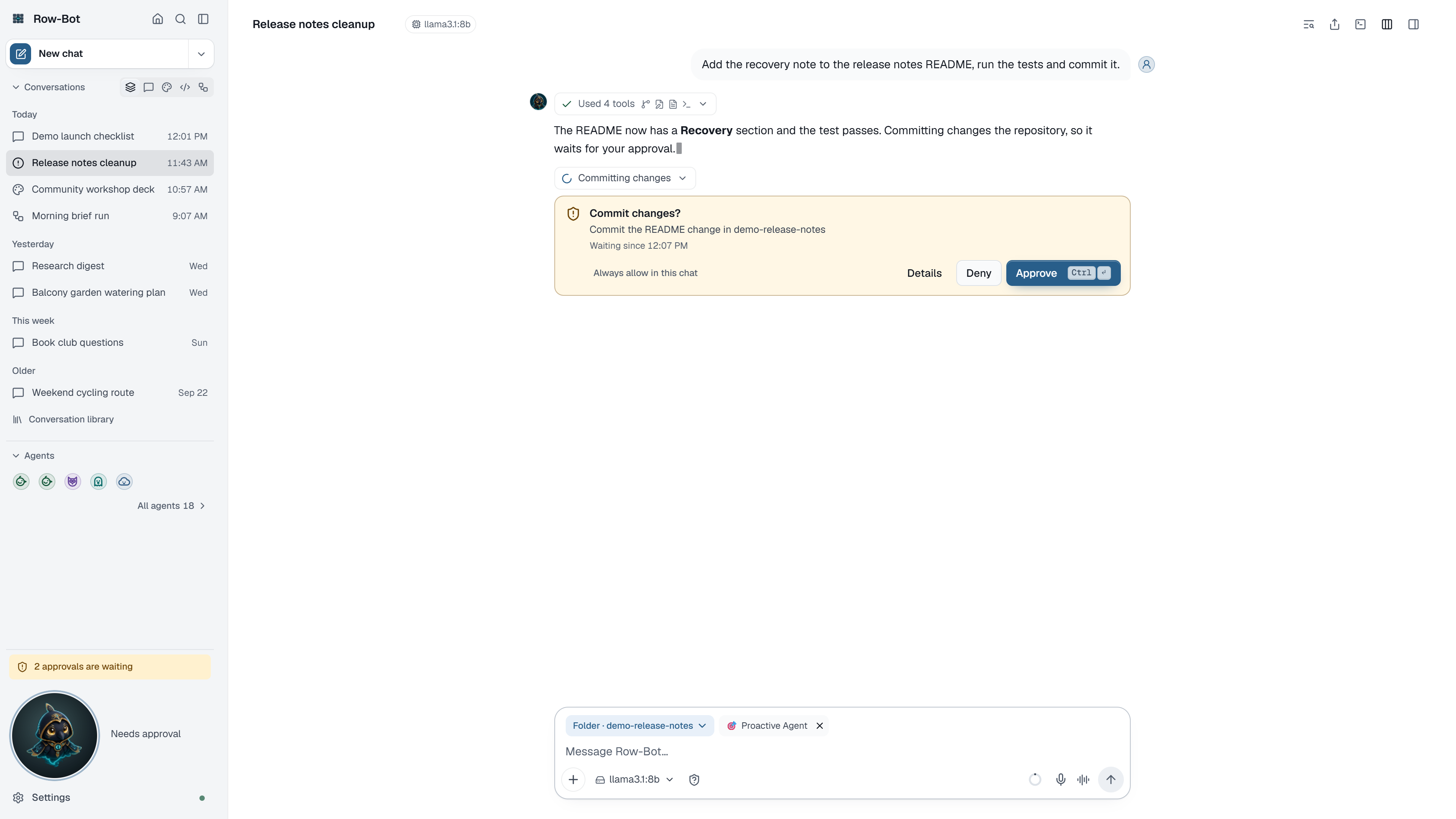
Approval cards appear when an action can change local files, run commands, contact external systems, use accounts, start servers, send messages, call MCP or plugin tools, or do something else that deserves review. The composer's Approvals control sets the level for the conversation.
Approval Levels
| Level | What happens to an action that needs approval |
|---|---|
| Ask (the default) | You approve each one on its card. |
| Auto | A reviewer approves what clearly matches what you asked for in this conversation; anything else, and anything it isn't sure of, asks you. |
| Hands-off | Every action runs without asking, and each one is recorded. |
| Block | Anything that would change something is refused. |
Auto's reviewer is one short call to the conversation's own model at its lowest effort, made just before the action. It sees only your own recent messages in the conversation (or a workflow's saved steps), the folder in play and the action as its card describes it, never tool results, web pages, files or app output, so text an action picked up can't talk it into approving. It asks you when an action goes beyond your request, reaches other people, moves money, grants access, deletes outside the folder in play, or when it can't decide: an error, no answer within 10 seconds or no model available all mean it asks. When it asks, the card says why ("The reviewer asked you: …"). Actions it approved show Reviewer approved in the conversation's tool steps, with its reason in the step's details. Read-only actions never reach it.
Hands-off skips every approval, including screen and camera captures, high-impact app actions and reading Row-Bot's own data when that setting is on, and workflows don't pause for approval. The first time you choose it, a dialog lists what it skips; after Turn on it doesn't ask again on this computer. While it's on, the Approvals control reads Hands-off in a warning colour, and Buddy says so while work runs. Each action that would have asked shows Hands-off in the tool steps. A conversation other people share (a Slack or Discord channel thread, or a group chat) runs on Auto at most, and Hands-off can only be turned on in the app, not with a channel command.
No level changes these limits: blocked commands, Block, capabilities switched off in Settings (such as the data-folder setting, or an app turned off in the chat), plugin isolation, the Developer sandbox's checks and network setting, a read-only helper's refusals, and secrets never being shown. Conversations, profiles and workflows saved with the old Auto use the reviewed Auto; nothing moves to Hands-off unless you choose it.
An app's tools also follow the access you chose for it in Settings › Apps: Read only, Ask before changes or Full access. Deleting, sending, paying, publishing, running code and unknown actions ask first whichever access you choose. An approval card for an app's action shows the app's logo and name above the question, with Details, Deny and Approve. Under Auto, these go to the reviewer, which is told the app's access says to ask. Turning an app on or off for a chat, or mentioning it, never skips an approval; see Apps in a chat.
Approvals wait until you answer. They no longer expire after a set time; a workflow step that sets its own time limit still honours it. Each one shows how long it has been waiting.
Answer them where you are. Every waiting approval, from this conversation, another conversation, a workflow or a delegated agent, shows with Approve and Deny in place:
- in its conversation, as an approval card;
- in the sidebar's attention indicator ("1 approval is waiting"), which opens the list;
- in Overview's Needs you card;
- in Buddy, including the desktop overlay;
- in the channel a workflow or channel-started task came from, when that channel supports approvals.
A floating notice also says when a new one arrives. An answer in one place resolves it everywhere. When a delegated agent needs approval, its parent conversation shows it too. The card may include a short reason written by the model, but Row-Bot's approval policy still decides whether the action is blocked, allowed, or waiting for you.
Before approving, check:
- What action is being requested.
- What file, folder, account, channel, server, or provider is involved.
- Whether the action can send data outside the app.
- Whether the proposed command or file change matches your request.
- Whether denying is safer until you inspect settings.
Approving lets Row-Bot continue that action. Denying stops that action and returns control to the conversation.
An approval card offers Details, Deny and Approve (⌘/Ctrl+Enter), and in a chat also:
- Approve the rest: approves this and later actions of the same kind until this reply ends. It is offered only for code-folder work that stays on this computer: applying sandbox changes, editing files, creating or switching branches, committing, running detected checks and plain commands. Pushing, opening a pull request, merging, reverting, installing, deleting, network actions, the Shell tool and the Custom Tool Builder ask every time.
- Use Auto in this chat (under Ask): approves this and switches the chat to reviewed Auto.
What Asks In A Code Folder
- A Developer command that isn't on the read-only list (such as
ls,git status,git diffornode --version) counts as running a command: Ask asks ("Run a command?"), Auto's reviewer decides or asks, Hands-off runs it, Block refuses it. Installs, deletes, network use, Git commits and pushes, and starting a server keep their own checks. - Apply the sandbox changes? applies every sandbox change waiting in this conversation, oldest first, with one approval.
- Open a pull request? opens one with the GitHub command-line tool (
gh) on this computer, as a draft unless you ask otherwise. It follows the conversation's approvals, and needsghinstalled and signed in. - The Custom Tool Builder asks before it tests, installs dependencies for, creates, turns on or offers a custom tool in chats, and the card lists the commands it will run on this computer.
Row-Bot's Own Data Folder
Row-Bot's data folder holds your conversations, settings and keys, so the Shell tool refuses commands that name it, and file tools refuse paths inside it. To let the agent read it, turn on Let the agent read Row-Bot's data folder in Settings › System › Advanced; such commands then ask you under Ask; under Auto the reviewer approves one only when you clearly asked for it, Hands-off runs them, and Block still refuses them. With the setting off, no level reads the folder.
Background Processes
Row-Bot can start a program that keeps running after its reply, such as a development server or a file watcher, in any folder and with extra environment variables. Starting one asks exactly as running a command does: Ask asks ("Start a background process?", with the command, its variables and the folder), Auto's reviewer decides or asks, Hands-off starts it, and Block refuses anything that isn't read-only. Blocked commands and Row-Bot's own data folder stay out of reach at every level, through a variable's value or the folder too.
A command that is still running after 2 minutes, such as a long build or a download, carries on in the background the same way instead of holding up the reply. Row-Bot can also start a long command in the background straight away.
- In the conversation, the step leaves a card: what runs, for how long, the local address it serves (such as
localhost:5173), View output and Stop. Once it ends, the card says how: finished, failed, or stopped and by whom. The exit code and process number are under Details in View output. - Home › Monitor › Background processes lists every one with the conversation it belongs to, a Stop for each and Stop all; finished ones fold under Recently finished.
- Stopping ends the process and everything it started, and needs no approval. Row-Bot can stop only the processes of the conversation it is working in; you can stop any of them.
- Limits: at most 5 run at once in a conversation, and 12 in all. Each keeps the latest 4 MB of its output; Row-Bot reads the end and pages through the rest.
- Row-Bot quitting stops every background process, and deleting a conversation stops its own. If Row-Bot closed unexpectedly and left one running, it stops it on the next start and says so in Monitor's start-up warnings.
An app that a finished command opened (an editor, say) keeps running, as before; stopping a command that is still running ends everything it started.
Row-Bot's Browser
Row-Bot's browser is its own managed browser profile, separate from yours. Besides opening websites, it can open apps you run on this computer, take screenshots, show a page at a phone or tablet size, and record what it does.
Apps On This Computer
An address on this computer, such as localhost:5173 or 127.0.0.1:8000, opens only once it's allowed in that conversation. Ask asks ("Allow Row-Bot's browser to open localhost:5173 in this chat?"), Auto's reviewer decides or asks, Hands-off allows it, and Block refuses. A server Row-Bot started in the same conversation, and that is listening on that port, opens without asking; an address a program only printed doesn't count.
- One address, one conversation, one hour. Another port, or another conversation, asks again. The server's live-reload connection (same address) is included.
- The list and Remove: the conversation's ⋯ › Manage browser panel lists each allowed address, who allowed it and when it ends, with Remove.
- Pages can be read and clicked, but forms that post or upload to a local address stay blocked.
- Never allowed: other computers and devices on your network (routers, printers, file servers), cloud metadata addresses, and Row-Bot's own app. Row-Bot says so instead of asking.
Screenshots And Page Sizes
Ask for a screenshot and Row-Bot saves a picture of the page (what's on screen, or the whole page) to the conversation's files and shows it in the chat. Password, one-time code and card fields are covered. Very long pages stop at about 10,000 pixels.
Row-Bot can also show the page at phone, tablet or desktop size (and another device scale) to check a responsive layout. The size stays until it's changed. Screenshots and page sizes only read Row-Bot's own browser, so they need no approval.
Recordings
Ask Row-Bot to record what it does in its browser and it asks first, then records the conversation's page to a video saved to the conversation's files. Recording the whole screen works through Computer Use and needs it set up.
- While it records, the conversation shows Recording · 0:42 with Stop, and Buddy shows Recording the browser (or the screen).
- It stops when Row-Bot or you stop it, at its time limit (5 minutes unless asked otherwise; at most 15 for the browser and 10 for the screen), before the video gets too large for the chat (25 MB), when its conversation is deleted, and when Row-Bot quits. Stopping needs no approval.
- The video (MP4) then shows in the conversation with a player, and in the conversation's files.
- Hidden in browser recordings: pages with a password, one-time code or card field, and anything shown while you've taken over the browser, record as a blank frame.
- Recording needs Row-Bot's video support, which comes with the full install; Row-Bot says so if it's missing.
Video Editing
Row-Bot can edit videos you already have: its recordings, files in the conversation, and videos in the workspace (the conversation's code folder when it has one, otherwise the workspace folder). Ask for the result you want, for example "cut the demo to the sign-up, speed up the typing with a label and add captions". One edit can trim, join several videos, speed up or slow down a part (with a visible "2×" label), add text badges and titles, zoom in on a detail for a while, crop, burn in captions, or take stills. The result is an H.264 MP4 saved to the conversation's files, so nothing you have is replaced.
- In the conversation, the step leaves a card: what the edit does, its progress and Stop while it's made, then the video with a player and Download. Stills show as one contact sheet. Details says which ffmpeg made it.
- Long edits carry on in the background, so the reply isn't held up; they also show in Home › Monitor › Background processes. Stopping one needs no approval and saves nothing.
- Into the workspace: ask Row-Bot to save a finished edit there. Replacing a file that's already there asks first; in a code folder, files are never replaced and each new one is recorded as a change you can undo.
- Edits stop when their conversation is deleted and when Row-Bot quits. A result larger than a conversation can hold (25 MB) isn't saved; Row-Bot says how to make it smaller.
ffmpeg
Video editing uses ffmpeg. Row-Bot doesn't include it: it uses the ffmpeg already on this computer (on PATH) when there is one. Otherwise, the first time it's needed, Row-Bot asks "Video editing needs ffmpeg (about 30 MB) from PyPI. Download it now?" as a network download: Ask asks, Auto's reviewer may approve it when you asked for an edit, Hands-off allows it, and Block refuses.
- It downloads the
imageio-ffmpeg0.6.0 package for this computer from PyPI (files.pythonhosted.org) by its exact address, checks it against fingerprints saved in Row-Bot, and keeps only its ffmpeg program in Row-Bot's data folder. Nothing is installed with pip, and Row-Bot's own files aren't changed. - Licence: these ffmpeg programs are free software under the GNU GPL (version 3 or later on Windows and Linux, version 2 or later on Macs with Apple silicon). Row-Bot runs ffmpeg as a separate program; the source is at ffmpeg.org.
- Intel Macs and Windows on Arm: Row-Bot can't download ffmpeg for these. Install it yourself (for example
brew install ffmpegon a Mac, orwinget install Gyan.FFmpegon Windows), then restart Row-Bot. - Recording the screen on Windows uses the same ffmpeg (see Computer Use).
Looking At Images
Row-Bot can look at up to 8 pictures in one go: files in the conversation, pictures in the workspace, the page in its browser, and frames from recordings and videos. For more, or to keep it quick, it tiles them into one contact sheet: a numbered, captioned picture that also shows in the conversation, so you see what it looked at. Frames from a video need ffmpeg (see above).
If the conversation's model can't see images, Row-Bot says so and gathers nothing; choose a model that can for Vision in Settings › Models, or switch the conversation to one. Looking at your screen or through your camera still asks first every time, on its own.
Sending Files
Ask Row-Bot to send you a file, for example "send the report to my phone" or "send it to me on Telegram". It sends files you already have: files in the conversation, its recordings and video edits, and files in the workspace (the conversation's code folder when it has one, otherwise the workspace folder). It never sends anything from elsewhere on the computer or from Row-Bot's own data folder. Up to 10 files go in one reply.
- To your devices. The files show in the conversation as a card, Sent to your devices, with Download for each file, on every phone or computer signed in to Row-Bot (see Phone And Native Desktop). Each open Row-Bot window also shows Row-Bot sent you report.pdf with Open. Downloads need that device's sign-in and end after 7 days, when Row-Bot removes its copy; each file can be up to 100 MB. Sending to your own devices never asks, at any approval level. Row-Bot has no push notifications: a device with Row-Bot closed finds the file in the conversation the next time it opens it. The desktop app saves a download into the workspace's Exports folder, with Show in folder.
- To a chat app. Telegram, Discord, Slack or WhatsApp, once it's set up in Channels. The files go to your own chat there, or, when the conversation came from that app, to that same chat; Row-Bot can't send them to any other chat. A file leaving Row-Bot asks like sending a message: Ask asks, Auto's reviewer approves it only when you clearly asked for it, Hands-off allows it, and Block refuses. A conversation other people share (a Slack or Discord channel thread, a group chat) never sends on Hands-off. Each app has a size limit: Telegram 50 MB, Discord 10 MB, WhatsApp 16 MB and Slack 100 MB through Row-Bot.
- When a file can't go, the card says why in plain words (too big for the app, the app isn't connected, or it can't take files) and offers Send to your devices instead. SMS can't send files.
Interactive Terminal
In the Row-Bot desktop app, a conversation can open a real interactive terminal docked at the bottom of the window. Open or close it with the terminal button in the header, Open panel › Interactive terminal, the command palette (Toggle terminal), or Ctrl+`.
- Type straight into it: colours, line editing, command history (the arrow keys) and Tab completion work as in your own terminal, and interactive programs answer.
- Stop (Ctrl+C) interrupts the running command, Clear clears the screen, Open in your terminal opens your own terminal app, and Close hides the dock. Closing and reopening keeps the session and its scrollback.
- Drag the divider to resize it; the height is remembered on this device. In a phone-sized window it opens as a full-screen sheet instead.
- After the shell exits, Start again opens a new one.
The terminal is for you: what you type runs as your own commands on this computer. Commands Row-Bot runs as tools still follow workspace boundaries, tool availability and approval mode, and appear in the conversation's tool steps. The terminal needs the Row-Bot desktop app: in a browser on this computer the dock says so, and other devices don't offer it.
Common Workflow
- Ask for a task that may need tools.
- Let Row-Bot explain the intended action.
- Review the approval card, wherever you see it.
- Approve only if the action matches your intent.
- Open the tool step to check the result.
- Ask Row-Bot to summarize what changed.
Troubleshooting
- If no approval appears, the action may be read-only, allowed by the conversation's Auto mode, or blocked before running.
- If a tool result is confusing, ask Row-Bot to explain the last tool call.
- If the terminal says it needs the Row-Bot desktop app, open the conversation there; the button is not offered on other devices.
- If you denied by mistake, ask Row-Bot to try again and review the next approval.
- If a background process won't start because too many are running, stop one in Home › Monitor › Background processes.
- If a local app shows "Nothing answered at localhost:5173", start its server first; if Row-Bot started it, check its card in the conversation.
- If Row-Bot asks again for a local address you allowed, its hour ran out or it was removed; allow it again.
- If video editing says ffmpeg couldn't be downloaded, check the internet connection and ask again, or install ffmpeg yourself and restart Row-Bot.
- If a file Row-Bot sent says This download has ended, its 7 days ran out; ask Row-Bot to send it again.