Chat
A conversation is the main place to work with Row-Bot. It can stay a simple chat, or use memory, documents, tools, approvals, attachments, skills, voice, agents, goals, designs and code folders.
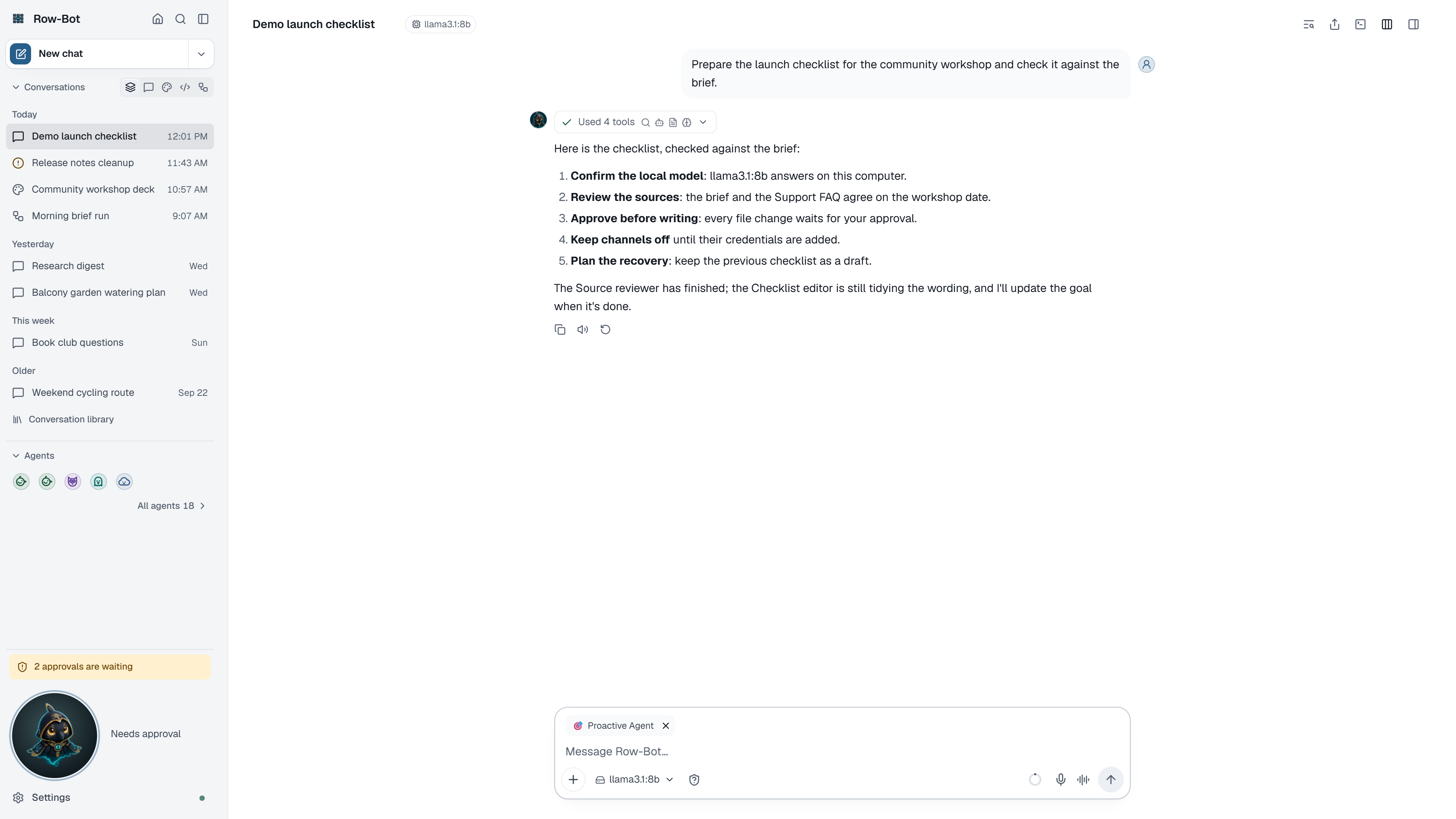
Start A Conversation
- Choose New chat in the sidebar (⌘⇧O / Ctrl+Shift+O), or type into the Ask box on Home › Overview.
- Use the ▾ beside New chat, a favourite agent in the sidebar, or Chat with … in the command palette to start with an agent profile.
A new conversation is named from the first words of your first message straight away, then gets a short name of its own after the first reply. Click the name in the header to rename it; a name you choose is kept.
The Conversation
- Header: the conversation's name, Find to search it (⌘F / Ctrl+F), Export, and Conversation details (⌘. / Ctrl+.).
- Transcript: your messages and Row-Bot's replies, each with a small speaker mark (your Buddy's picture for Row-Bot), plus tool steps, how long Row-Bot thought, charts, images, generated media, approval cards and the agents a turn started.
- Composer: type the next request. Enter sends and Shift+Enter adds a line. Send becomes Stop while Row-Bot replies. A message you type while the previous one is still being sent stays in the composer on its own.
- Retry and Send again run your last message again in place of its answer, without a second copy of the message, when nothing is running or waiting for an approval. A turn that already used tools stays on record, so its retry is sent as a new message.
Composer Controls
- Model chooses the model for this conversation. See Model Picker.
- Thinking appears beside the model only when that exact model exposes supported reasoning choices. See Reasoning Controls.
- Approvals sets how actions are reviewed in this conversation, and its menu says what each mode does: Ask asks before anything that makes changes, Auto runs routine actions while risky ones still ask, and Block runs nothing that makes changes.
- The + menu (Add files and more) holds Attach file, Add resource… (a design or code folder), Skills…, Apps, Agent (each agent with a line on what it does), and Mode: Agent uses tools and agents, Chat only answers without tools.
- Skill chips above the composer show the skills in use, including default ones; × removes one from this conversation. Skills… (or
/skills) opens Smart Skills, which ends with Find more skills to open Settings › Skills. - Voice buttons use Dictate or Talk when voice is set up.
Apps In A Chat
The apps you connect in Settings › Apps can be used in every chat. + › Apps says how many are on in this chat (such as "2 on", or "None yet") and lists each ready app with its logo and a check box:
- Clear an app's check box to stop this chat using it, and check it again to bring it back. This changes only this chat; other chats and the app's own settings stay as they are. An app you connect later starts checked.
- An app this chat's agent profile doesn't include is listed but can't be checked: "This chat's agent profile doesn't use it."
- Only ready apps are listed. One that needs a sign-in or a key, or is turned off in Settings, appears once it is fixed on its app page.
- A built-in way without chat tools, such as the GitHub account or a channel, is listed without a check box and says why, for example "Used by skills and Developer, not by chat tools."
- Find more apps opens Settings › Apps. To start a chat with an app, use Try it on its page there: it opens a new chat with a draft that uses the app, and nothing is sent until you send it.
Mention An App Or A Skill
- Type
@to mention something. The list's Apps group shows this chat's apps with their logos ("Use only this app for this message"), beside Agents, Resources and Files. Mentioning an app focuses that message on it: for that turn Row-Bot uses only the apps you mentioned. - Type
/and choose a skill from the Skills group. Chosen while your message has other text,/skill-namestays in the message and focuses that turn on the skill. Chosen in an empty message, it turns the skill on for the whole chat, and it shows as a skill chip. - A message can mention up to 8 apps and 8 skills.
Switches and mentions only narrow what a chat can use; they never widen it. The chat's agent profile sets the limit. A mention never turns on an app that is off in this chat, not connected, or outside the profile; a mentioned skill must already be on and allowed by the profile; and approvals still apply as usual.
When No App Can Do It Yet
If you ask for something none of your apps can do, Row-Bot can suggest apps from its own catalog, the copy kept on this computer. A card says "Row-Bot can do this with one of these apps." (or "with an app." for one) and lists up to three. Each shows what Row-Bot's catalog knows about it, never text from the model or a web page: its logo and name, who publishes it (by publisher with a check when the service's own vendor publishes it, Built in, or Community · publisher) and its status.
- Details opens the app's page in Settings › Apps.
- Connect (or Sign in, Set up or whatever the app needs next) opens the same Connect app sheet and setup as Settings › Apps, right in the chat, ending with Here's what app can do and Allow. For an app built into Row-Bot, Set up opens its own settings instead.
- An app you added but turned off offers Turn on instead of connecting it again. An app set to look things up only offers Allow changes when the work is a change.
- When the app is ready, its row offers Continue. That sends "It's connected now. Please continue with my request." as your next message.
Suggesting is all Row-Bot does on its own: it looks only in the local catalog, and never installs or connects anything, agrees for you, or asks for keys in the chat. If no app fits, it says so and doesn't point you to websites or downloads.
App Views
Some apps can show a result as an interactive view, such as a chart, a form or a board, under the step that made it, headed with the app's name and the step. A view runs apart from Row-Bot: it can't see your other chats, files or settings, it loads only from addresses its app declares, which the card lists ("This view also loads from …"), and it opens a link only when you click in it.
- Anything a view asks to do goes through the app's access and this chat's Approvals, like any other call. When it must ask, the approval card appears inside the view.
- Turn views off for every app with Settings › Apps › Advanced › Show app views in chat, or for one app with Show views in chat on its page. Both are on for apps whose setup included a view.
- If a view doesn't open, Open again tries again. "Views from this app are off. Turn them on from its page in Apps." means a switch is off: the app's Show views in chat, the one in Apps › Advanced, or the app in this chat's + › Apps.
Attachments
Attach files with + › Attach file, by dropping them on the conversation, or by pasting. Each file shows as a small tile above the text: pictures show a preview, other files their type, name and size. Tiles show upload progress and offer Retry if an upload fails. You can keep adding files while others upload; Send waits for them. Click a tile to preview it, or × to remove it.
Context And Usage
The small ring beside Send shows how much of the model's context the conversation fills. It appears after the first reply, and the mark on it shows where compaction starts.
- Hover over the ring for one line, such as "43% of context · compacts at 88% · 1.2M tokens used, 82% from cache". The tokens are what this conversation's model calls have used so far. The share from cache is how much of their input the provider read from its prompt cache, which providers usually charge less for.
- Click the ring for the details: the approximate tokens against the usable amount, where compaction starts, the model's window, and the conversation's total. When a provider reports a cost, as OpenRouter does, the details show it too; Row-Bot keeps no price list of its own.
- On a phone or in a narrow window, the composer is one line, and the context line is in its + menu.
For usage beyond one conversation, ask Row-Bot in Agent mode, for example "How many tokens did I use this week?" It answers from its own record: this conversation, the last 24 hours, 7 days and 30 days, with a breakdown by model and by kind of work, such as your chats, compaction, memory extraction and Dream Cycle. The record holds token counts and timings only, never prompts, replies or files. It stays on this computer, counts older than 90 days are removed, and deleting a conversation deletes its counts.
Long Conversations
When a conversation gets long, Row-Bot first clears older tool output from what it sends the model; the steps stay in your transcript. Only when that is no longer enough does it compact the conversation: it summarizes earlier turns and keeps the recent ones. The ring shows Compacting context… while that runs.
Compaction starts near the end of the model's window, leaving room for the reply and the summary: at about 967,000 tokens on a 1M-token model, and at 167,000 to 177,000 on a 200,000-token one, depending on the provider. Smaller local models keep about a quarter of the window free. A Reading limit in Settings › Models makes the window smaller.
The Details Card
Conversation details sits beside the conversation on a wide screen. It shows:
- Working on: the designs and code folders bound to this conversation. Choose one to open its panel, or unbind it from its ⋯ menu. Add resource binds another.
- Outputs: images and videos the conversation made, linked to where they appear.
- Goal: the conversation's goal and its progress. Without one, the card shows only a small Set a goal. See Profiles, Goals, And Agents.
- Agents: the agents this conversation started, each with its status, Message and Stop.
Its ⋯ menu offers Manage conversation, Manage browser and Delete conversation. After you confirm, Undo stays in the notice for a few seconds; the delete happens when the notice goes.
Approvals
When Row-Bot needs your decision, an approval card appears in the conversation with Approve and Deny. When the action belongs to an app, the card shows the app's logo and name, and so does the tool step for anything an app did. Approvals wait until you answer, and they also show in the sidebar's attention indicator, on Overview and in Buddy, so you can decide from wherever you are. See Tools, Approvals, And Terminal.
Beginner Workflow
- Start a new chat.
- Choose a model that is ready for chat.
- Ask one clear question or task.
- Attach files only when the task needs them.
- Review any approval before allowing Row-Bot to act.
Power Workflow
- Start a chat with the agent profile for the kind of work.
- Pick a stronger tool-capable model.
- Bind the design or code folder you are working on.
- Set a goal when the work needs several turns.
- Let Row-Bot use tools, but approve file writes, browser actions, shell commands, account actions, channel sends, MCP calls, and plugin tools deliberately.
Continue From The Buddy Overlay
In the native Windows and macOS apps, drag Buddy from the sidebar onto the desktop for a compact view of the selected conversation. Its composer shares that conversation's saved draft, model, tools, approval mode, and active response. Simple approvals can appear in the overlay; open the full thread for complex approvals, attachments, transcript history, tool traces, model controls, Talk, or Dictate. See Settings: Buddy.
Find, Export, And Clean Up
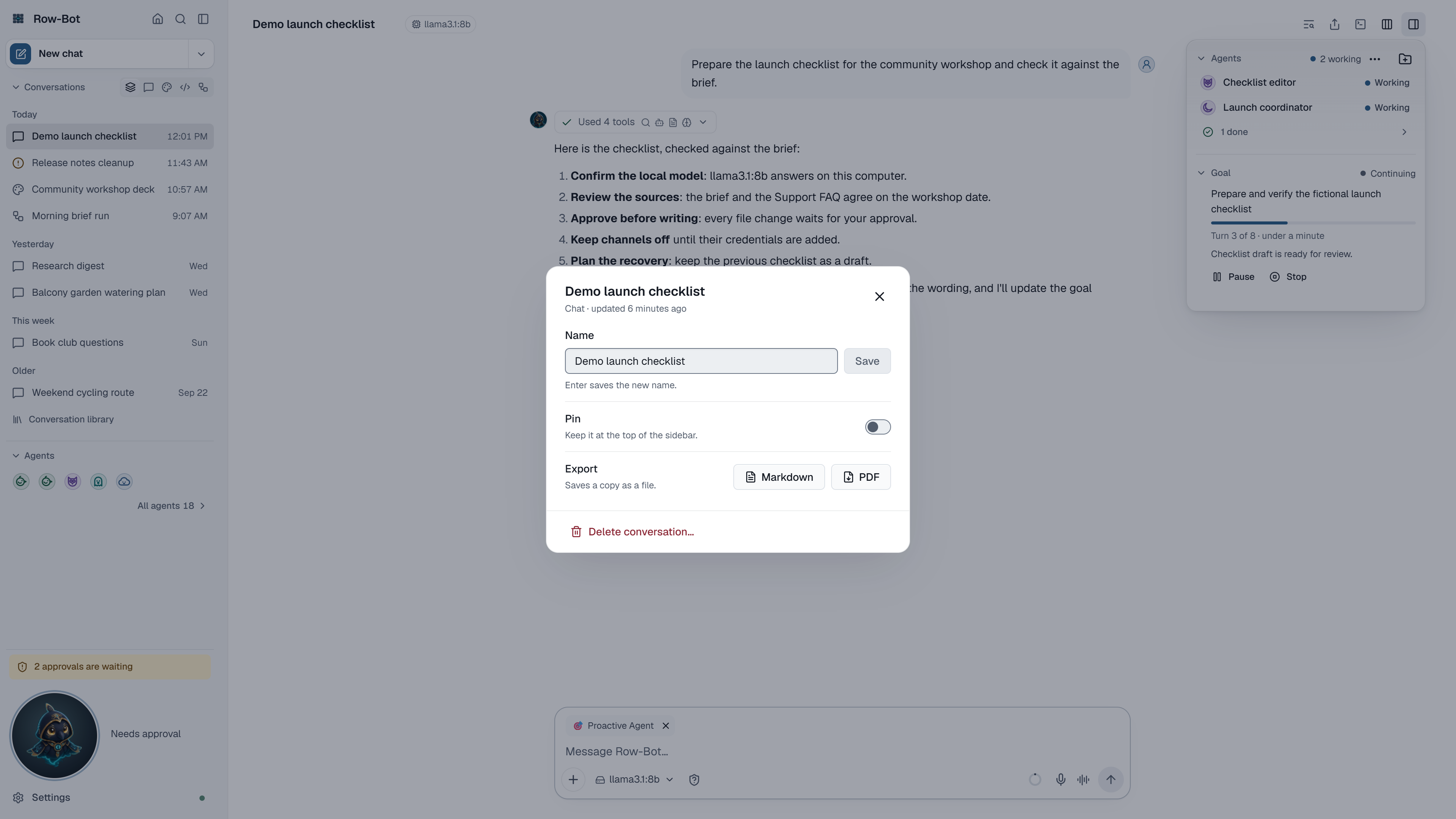
- Export in the header opens the conversation's actions: change its Name, Pin it to the top of the sidebar, or Export it as Markdown or PDF, then Save export to choose where the file goes.
- A sidebar row's ⋯ menu exports or deletes one conversation too.
- Conversation library, at the end of the sidebar's list, lists every conversation.
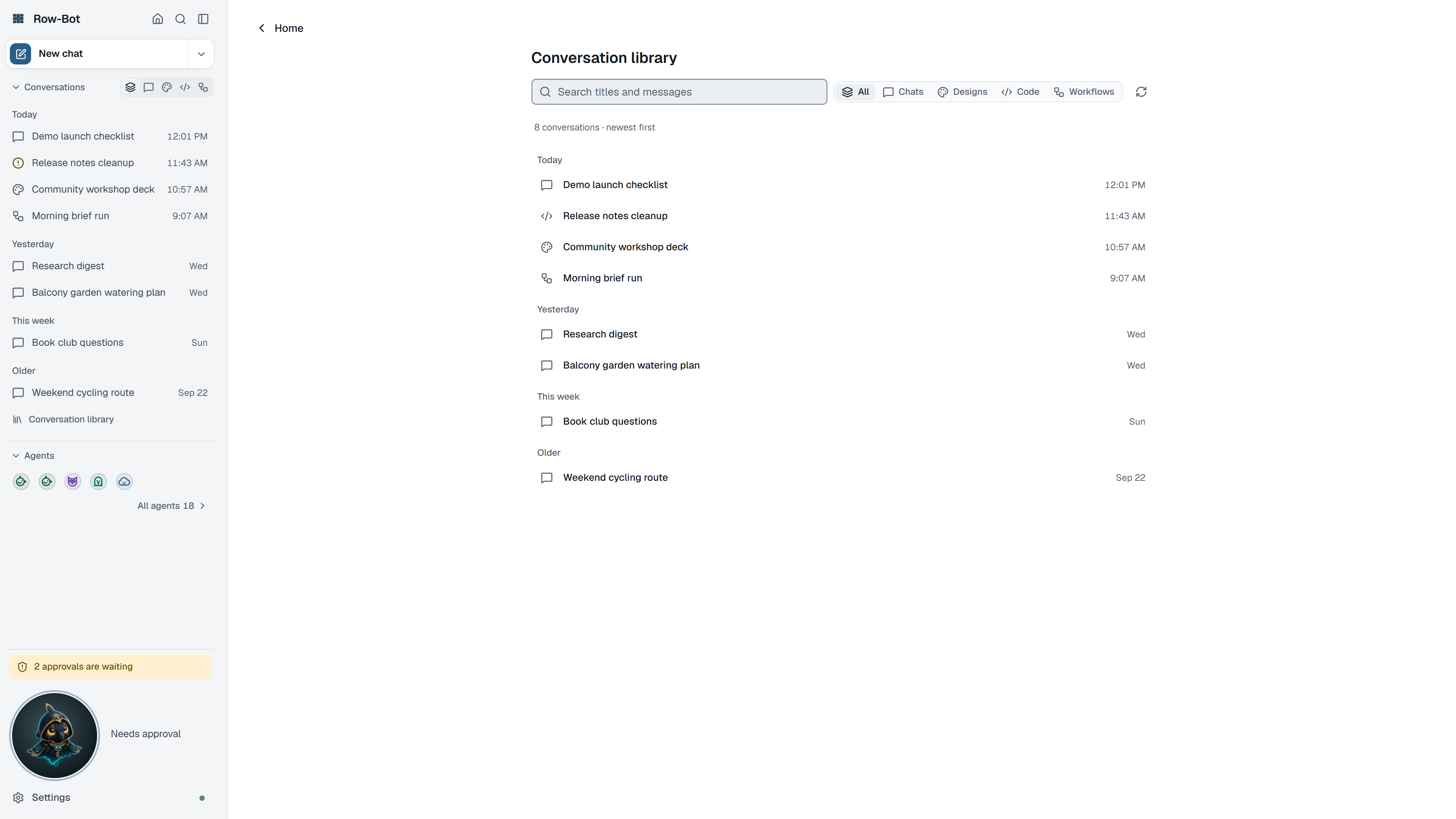
In the library, Search titles and messages as you type: every matching title comes first, then messages, newest first, with plain-text excerpts; Continue search looks further back. Filter by type (All, Chats, Designs, Code, Workflows), and select conversations. The selection bar at the top pins or unpins them, exports them as Markdown or PDF, or deletes them; Clear selection (Esc) starts again. Exported files go to Row-Bot's Exports folder; Show in folder opens it.
Deleting a conversation stops its running work, then removes its messages, drafts, attachments, media, tool sessions, workflow state and agent state after you confirm. Bound designs and code folders remain. Developer worktrees with changes and sandboxes with unimported work are kept and reported, so deletion does not discard source work. Deleting one conversation from the sidebar or the details card offers Undo for a few seconds; deleting a selection in the library asks first ("Delete 3 conversations?") and cannot be undone, so export anything you need before confirming.
What Is Saved
Conversation names, messages, model choices, per-model reasoning selections, approval mode, profile, attachments copied into Row-Bot-managed storage, and tool results are saved locally. External providers receive prompt content only when you choose their models.
Privacy And Safety
Local model runs can stay on your machine. Hosted models, web search, browser actions, account tools, MCP servers, plugins, and channels can send data outside the app when configured and used. Row-Bot should not insert secrets into chat; enter credentials only through Settings or the provider's sign-in flow.
Troubleshooting
- If Row-Bot cannot answer with the current model, choose a more capable model in the picker.
- If the Thinking control is missing or a saved choice resets, read Reasoning Controls.
- If attachments are ignored, check that their tiles finished uploading and that they are relevant to the prompt.
- If a tool is unavailable, check the composer's Mode, the conversation's agent profile, approval mode, and Settings.
- If an app isn't used, check that it is checked in + › Apps for this chat and that it is Ready in Settings › Apps. A mention can only narrow a turn to apps the chat already has on.
- If an external tool is enabled but not selected automatically, use a more specific request or review Progressive Tools And Skills.
- If a reply is stuck, press Stop, then retry with a narrower prompt.