Phone And Native Desktop
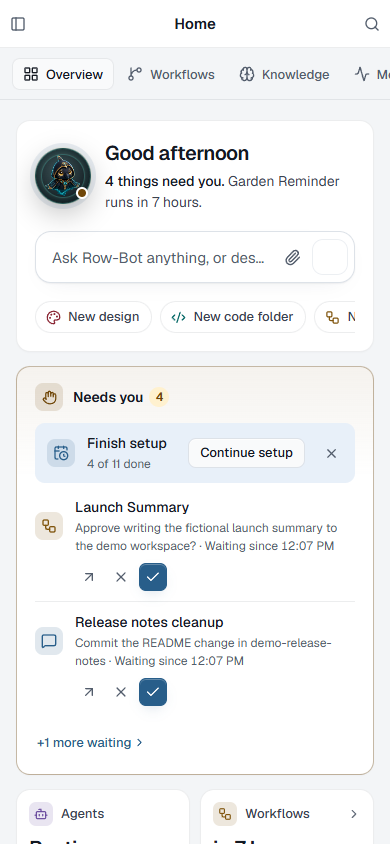
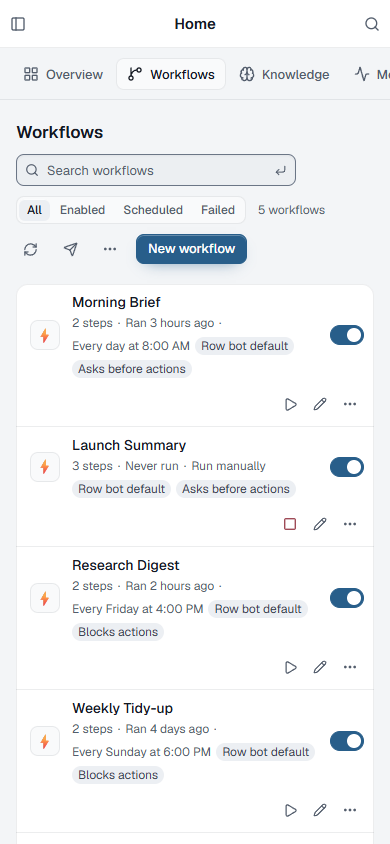
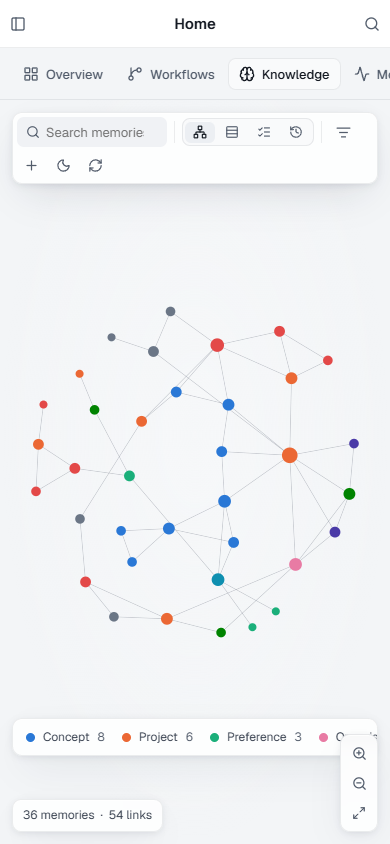
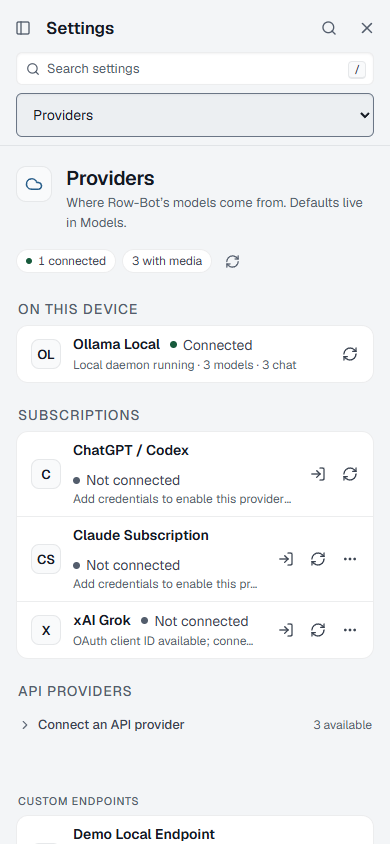
A phone connected to your Row-Bot gets the whole owner product in a layout made for a small screen: conversations, Home with Overview, Workflows, Knowledge, Monitor and Insights, approvals, and every Settings page. The native desktop app adds operating-system integration such as the window, tray, microphone, the system's file and folder pickers, and the terminal. Layout never changes Row-Bot's authority or the approval rules of the underlying task.
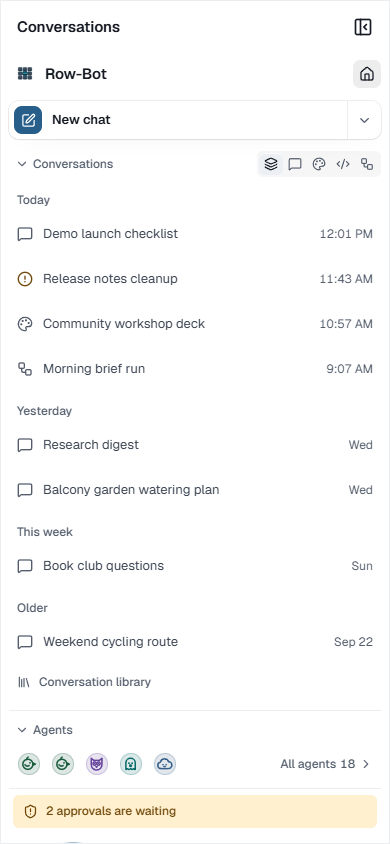
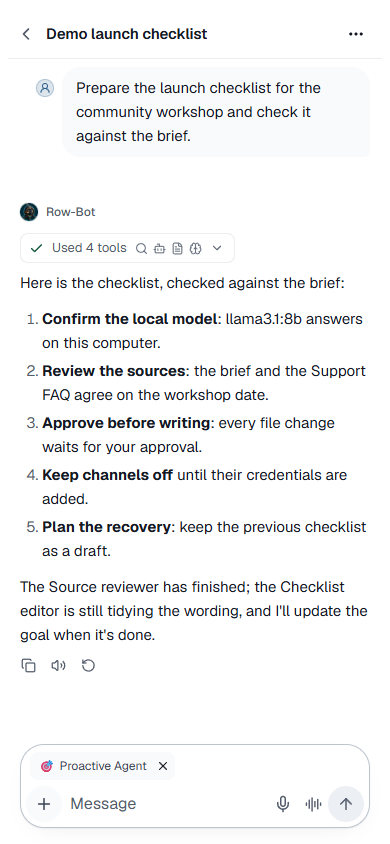
The Phone Layout
Row-Bot switches to the phone layout when the window is narrow, whatever the device.
- A slim top bar opens the sidebar as a drawer and opens the command palette.
- In a conversation, the header's ⋯ menu holds Find in conversation, Conversation details, Export, Rename conversation, the conversation's panels, and the command palette.
- Design and Developer panels open as full-screen sheets.
- Settings shows a Settings section list at the top instead of the side list. It holds every page, in the same six groups as on the desktop: Preferences, Appearance and Buddy; Providers, Models and Voice; Memory, Documents and Tracker; Tools and Skills; Apps; System, Devices & remote access, Updates and Data.
Files Row-Bot sends to your devices show in the conversation with Download on the phone too, for 7 days (see Sending Files).
Features that need the computer running Row-Bot, such as the interactive terminal, choosing folders, and saving files with the system's Save dialog, are available only in the Row-Bot desktop app there.
Connect A Phone
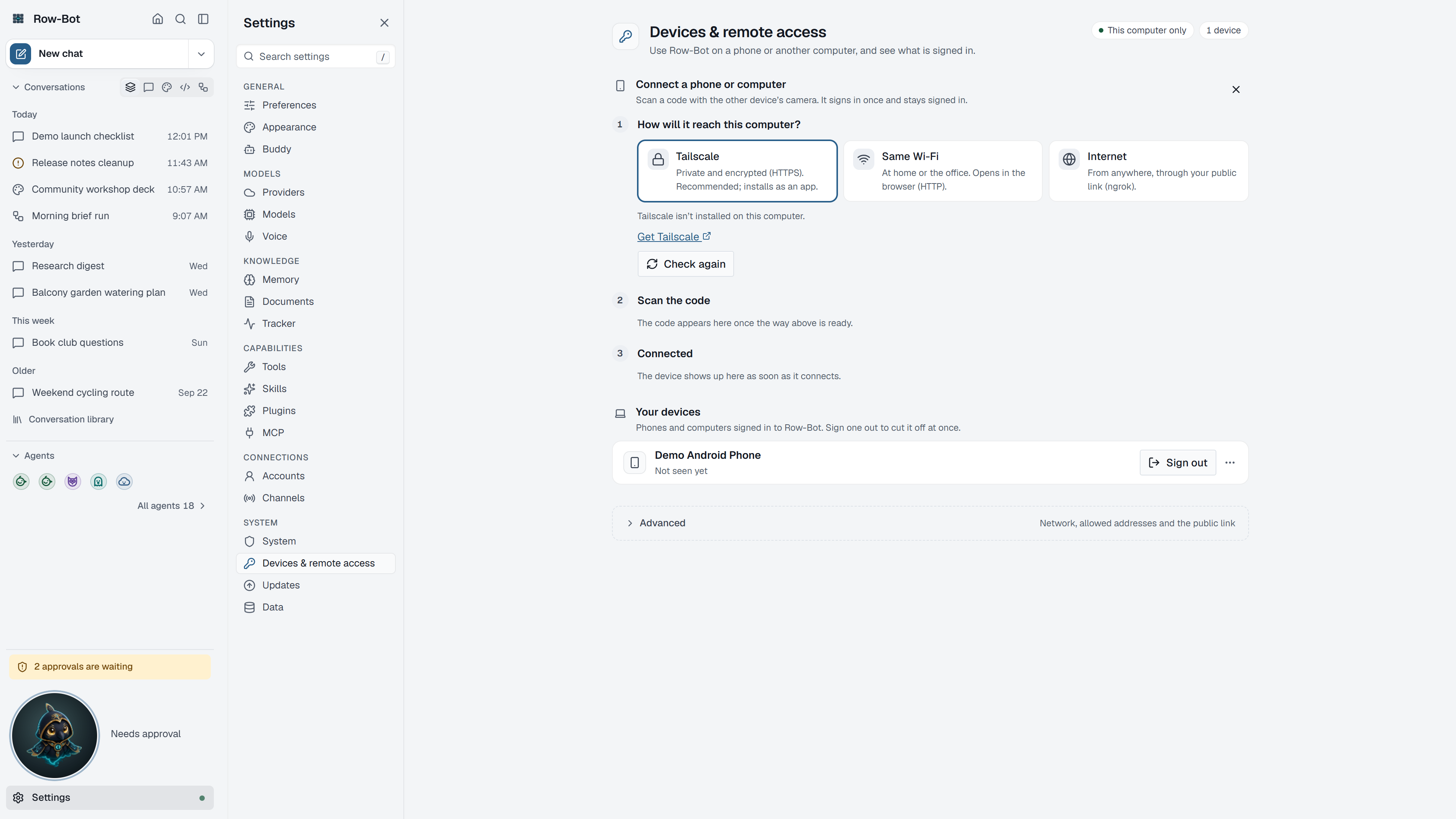
- On the computer running Row-Bot, open Settings › Devices & remote access and choose Connect a phone or computer. The command palette finds it as "phone".
- Choose How will it reach this computer?: Tailscale (private and encrypted, recommended), Same Wi-Fi (at home or the office, over HTTP), Internet (from anywhere, through your public link), or another address you set up yourself.
- Choose how long it should Stay signed in: 30 days or 12 hours.
- Scan the code with the phone's camera, or open the shown address on it.
- On the phone, review the connection page and press Connect before the code expires.
- Your devices lists every signed-in phone and computer; sign one out when it is lost, replaced, or no longer trusted.
The code expires after 10 minutes and works once. Opening it does not use it up until the phone presses Connect. The resulting session is a separate HttpOnly browser credential and never appears in the address.
Connecting grants access to your local Row-Bot instance. Do not share a code, expose the local server broadly, or use Same Wi-Fi HTTP on an untrusted network. Tailscale or an operator-managed HTTPS address is preferred and is required for browser microphone use away from the computer. See Remote Access And Server Mode for the complete connection and recovery model.
Native-Only Checks
Some states cannot be reproduced faithfully in browser automation: OS microphone prompts, native file and folder pickers, tray menus, updater and restart dialogs, Computer Use takeover, and physical-device network permission. The public guide documents their intent; release review must test them on the target operating system and a physical phone.
Troubleshooting
- If the phone cannot connect, check the route you chose on the computer, the port, the firewall, and whether both devices can reach each other.
- If a code expired or was already used, show a new code rather than copying cookies or local credential files.
- If the connection page opens but the app stays unavailable, confirm the phone pressed Connect and that the device wasn't signed out.
- If an approval seems missing, open Overview: Needs you lists every waiting approval.
- If the phone layout appears on a computer, widen the window; the layout follows the window's width.