Designs
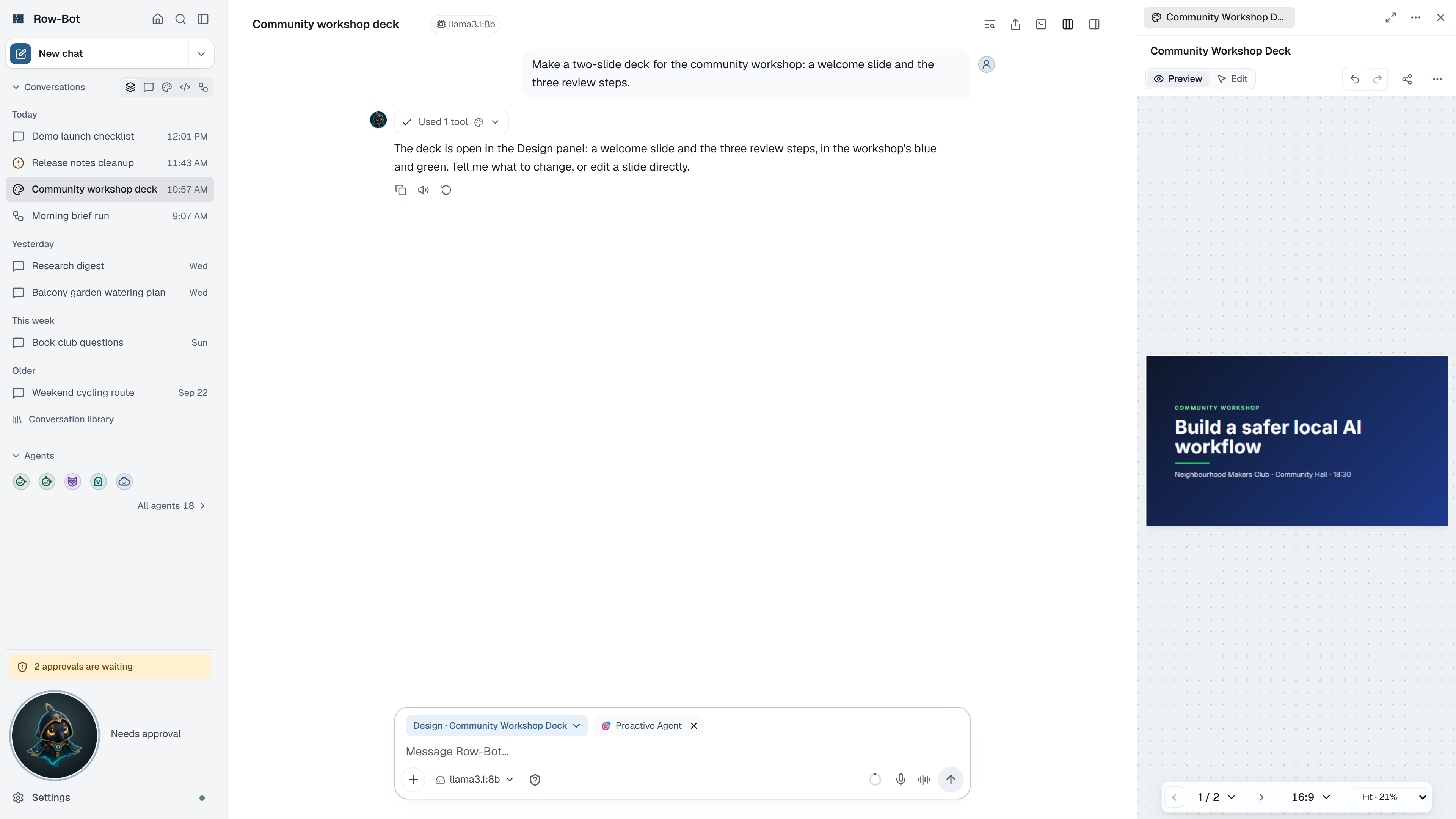
Row-Bot can make visual work with you: decks, documents, landing pages, app mockups and storyboards, with your brand's colours, fonts and logo, charts, and generated images or video. Each design belongs to a conversation and opens in that conversation's Design panel, beside the chat, so you can ask for changes and see them land.
Start A Design
- Ask in a chat: "Make a five-slide deck about our spring workshop." Row-Bot creates the design, and the finished design opens in the panel by itself when you are not typing.
- Home › Overview › New design sets one up and opens it in a new chat.
- In a conversation, open the composer's + menu, choose Add resource…, then Design. Choose Create new (the type, an optional name and brief, a template and canvas, and Draft it now) or Open saved to bring an existing design into this conversation.
The conversation's details card lists it under Working on; choose it there, or from the header's Open panel menu, to reopen the panel.
The Design Panel
- Preview and Edit switch between looking and changing. In Edit, click anything on the page to change it, or ask Row-Bot about it; double-click text to edit it in place. Changes save as you go.
- Undo and Redo step through your changes; Versions lists saved versions and restores one.
- The page strip moves between pages, adds a page after the current one, or deletes one.
- Size chooses the canvas (16:9 widescreen, 4:3, square, A4 document, 9:16 phone, or a custom size). Device width previews pages at desktop, tablet or phone width, and the zoom control fits or scales the page.
- Present shows the design full screen.
- Share publishes a link (with a QR code), sends to a channel, or prepares an X post.
- Export saves the current saved version as PDF, PNG, PowerPoint (pictures for high fidelity, or editable text and shapes) or HTML, for all pages, the current page or a page range.
- The ⋯ menu opens the design command palette to search tools, pages and assets, imports a document, or duplicates the design.
The Inspector
Inspector opens three tabs:
- Selection edits the chosen element: its text, font, size, weight, colour and alignment; an image's file, fit, crop, corners and description; width and borders; and what happens when it is clicked (go to a screen, toggle a state, play media). Edit as CSS… is there for exact control.
- Brand sets the design's Colours (primary, secondary, accent, background and text), Fonts for headings and body from a font picker (recently used, bundled, and fonts on this computer), and the Logo: upload one, then choose its placement, size, spacing, which pages show it, and automatic or manual placement. Save the brand as a preset to reuse it in other designs.
- Library inserts Blocks, Your images, saved Styles and Interactions.
Review checks the design and lists what to fix.
Brand And Media Providers
Generated images or videos call the image and video models chosen in Settings › Models. Local design edits stay in local project data.
For xAI API image models, Row-Bot uses the provider's live image-generation catalog instead of guessing from the chat catalog. It exposes only the formats, aspect ratios, resolutions, and quality choices reported for that model. If xAI rejects an optional quality field, Row-Bot retries once without it; timeouts and other failures do not trigger an automatic second generation that could duplicate cost.
What Is Saved
Designs, their versions and brand presets are local Row-Bot data. Deleting the conversation keeps the design; open it from another conversation with Add resource… › Open saved.
To delete a design itself, open it and choose More design actions › Delete design…. Its pages, saved versions and files are deleted, and it leaves every conversation that used it; those conversations keep their messages. It can't be deleted while a conversation using it is working. Undo on a Created design card in the chat deletes the design too, so it asks first (Delete design?).
Troubleshooting
- If a first draft is thin, give a clearer goal, audience and length, and attach references.
- If an export looks wrong, preview each page first; exports use the last saved version.
- If an export says Export unavailable ("Exports need Browser Automation"), PDF, PNG and PowerPoint exports need Row-Bot's browser: open Settings › System › Browser and computer use, choose Set up…, and Install the Browser runtime, then export again. You do this once: it is kept in your data folder, so updates keep it.
- If a preview says a font "isn't available offline", it shows a bundled substitute; the design keeps its font, but offline exports embed only fonts bundled with Row-Bot, so choose one of those for a design you will export.
- If image generation is unavailable, choose an image model in Settings › Models and check its provider.
- If a change says the design changed meanwhile, let the panel reload the current version and try again.