Settings: Preferences
Preferences are personal choices: how Row-Bot introduces itself, how it opens, and when it tidies memory overnight. Appearance, the page after it in the General group, sets how Row-Bot looks on this device.
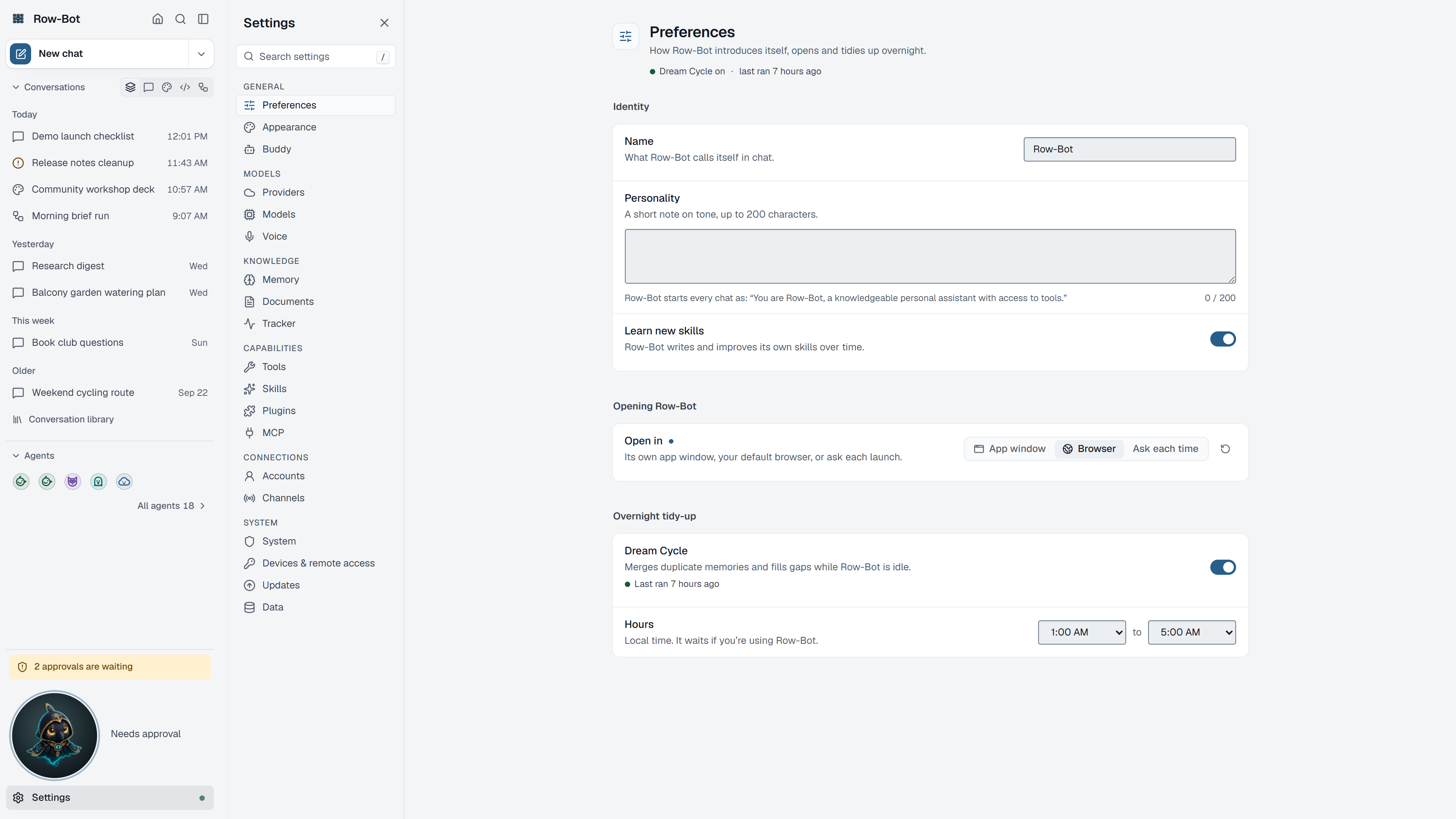
Where To Find It
Open Settings, then choose Preferences in the General group, or search for it with Find a setting.
Identity
- Name is the assistant's name.
- Personality sets the assistant's default tone; a preview shows how it sounds.
- Learn new skills lets Row-Bot write and refine skills from your work. Turn it off to keep the skill library exactly as you set it.
Opening Row-Bot
Open in chooses whether Row-Bot opens in its own app window, in your browser, or asks each time.
Overnight Tidy-Up
Dream Cycle tidies memory while you are away: it merges duplicates, enriches thin memories and infers missing links. Choose the Hours it may run (start and end hour). Its runs appear in Monitor's History, and Home › Knowledge can run it at any time.
Appearance
Settings › Appearance applies to this device only, so a phone and a computer can look different:
- Appearance: System (follows your device), Light or Dark.
- Colour theme: Blue, Teal, Violet or Amber.
- Density: Comfortable or Compact.
- Reduce transparency turns off the glass effect.
- Workspace layout › Panel sizes restores panel sizes without changing conversations or the look.
A preview shows the result as you choose. In the command palette, "dark mode", "light mode" and "follow the system appearance" change it in one step.
What Moved
- Updates (background downloads, Restart to update, Repair and the update channel) is its own page in the System group. See Updates.
- Import from another assistant (Hermes Agent or OpenClaw) is on Settings › Data, with back up and restore. See Operations, Data, And Recovery.
What Is Saved
Preferences are global local settings. Appearance is saved on each device. Existing conversations keep their own model, profile and approval choices.
Privacy And Safety
These settings stay on your computer. Dream Cycle works on local memory and uses your chosen model when it needs one, which may be a hosted provider.
Control-Level Reference
The generated Settings Controls reference lists every searchable setting on this page with its deep link, search keywords, and any dependency or security notes.
Troubleshooting
- If the app opens in the wrong place, change Open in and restart Row-Bot.
- If Dream Cycle never runs, check that it is on and that its hours include times your computer is awake.
- If the look differs between devices, that is expected: Appearance is saved per device.