Settings: Tracker
Tracking keeps structured personal logs, such as habits, symptoms, moods or health events, that you ask Row-Bot to record in a chat ("I drank 8 glasses of water", "Log a headache, 6 out of 10"). Row-Bot keeps each kind of record as a tracker.
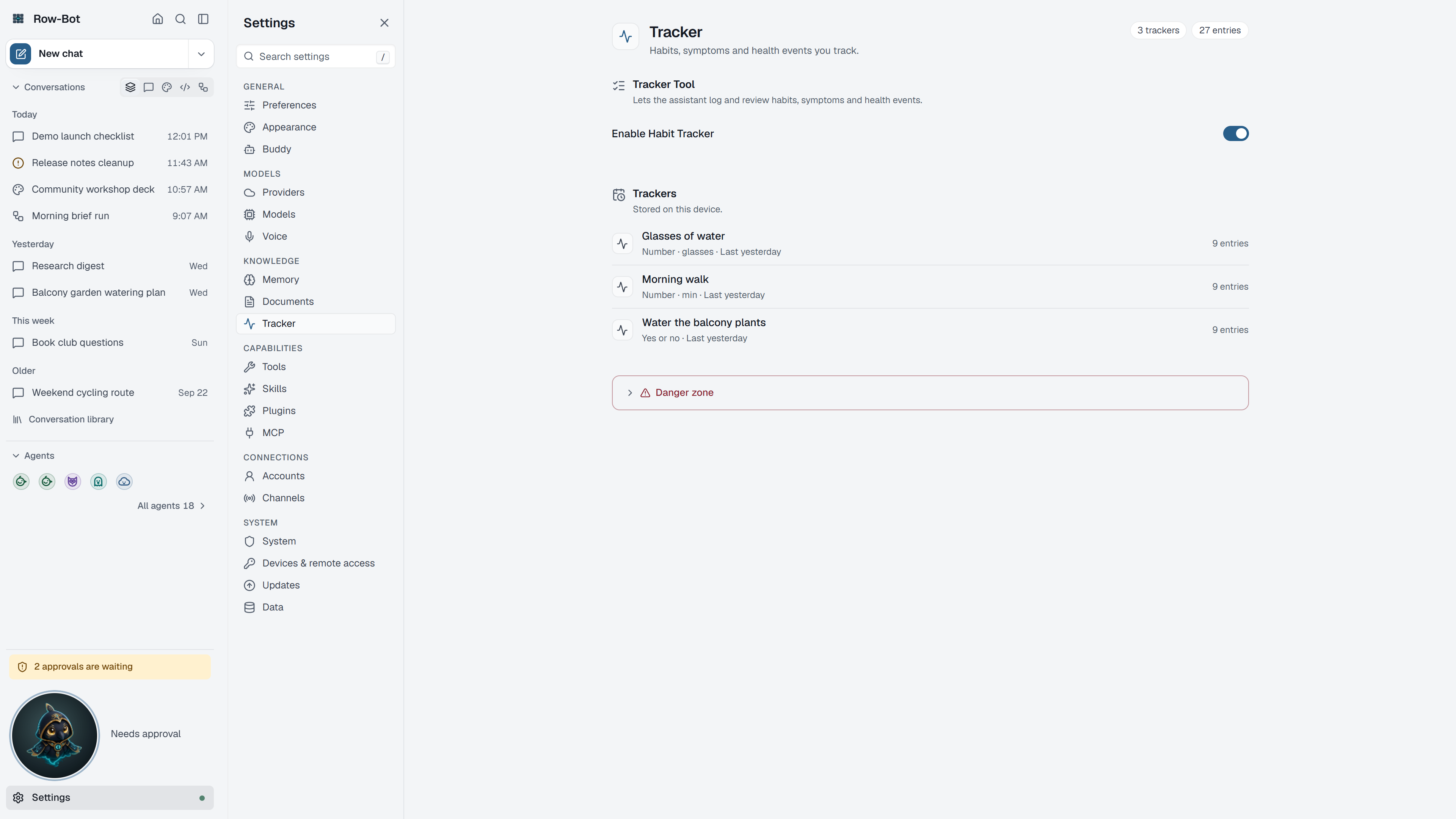
Where To Find It
Open Settings, then choose Tracker in the Knowledge group, or search for it with Find a setting.
Controls
- Track in chat turns tracking on or off. While it is off, Row-Bot doesn't record or read trackers.
- Trackers lists each tracker with its kind and how many entries it has. Choose a tracker's name to see its latest entries (the newest 50, with the total); nothing there changes an entry. Its delete button deletes that one tracker and its entries, after you confirm.
- Start a tracker in chat opens a new chat with "Start tracking " ready in the message box, so you can say what to track. Trackers are added by asking Row-Bot in a chat.
- Danger zone › Delete all trackers deletes every tracker and entry, after you confirm.
Common Workflow
- Choose Start a tracker in chat and say what you want to track.
- Keep logging in any chat ("Log 30 minutes of running").
- Open the tracker here to check its latest entries, or ask Row-Bot to summarise them.
- Delete a tracker you no longer use.
What Is Saved
Tracker data is local Row-Bot data. It can influence answers only when Row-Bot is allowed to retrieve or summarize it.
Privacy And Safety
Review credential, account, channel, provider, or tool settings before enabling features that can contact outside services. Local-only features stay on your machine until you ask Row-Bot to use a provider, account, channel, MCP server, plugin, or tool that sends data elsewhere.
Control-Level Reference
The generated Settings Controls reference lists every searchable setting on this page with its deep link, search keywords, and any dependency or security notes.
Troubleshooting
- If a tracker is missing, check that Track in chat is on, then ask Row-Bot in a chat to start it.
- If a summary seems wrong, open the tracker here and check its latest entries.
- If privacy matters, do not include tracker details in prompts sent to hosted providers.