Monitor
Monitor shows whether Row-Bot is healthy, what needs attention and what recently happened. Use it when a workflow, channel, account, model, background job, knowledge extraction or Dream Cycle needs investigation.
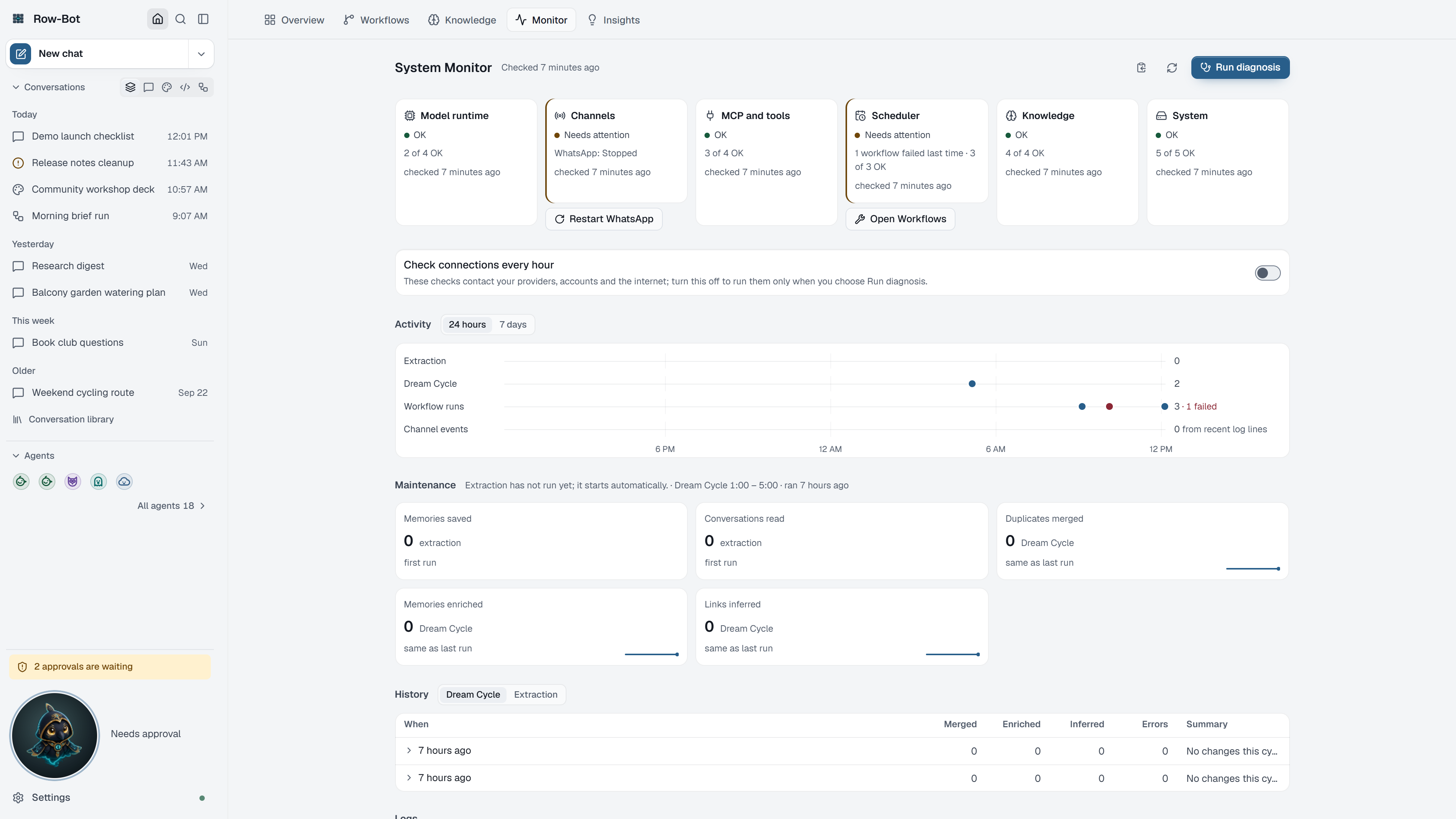
Where To Find It
Choose Home, then the Monitor tab. When something needs you, the sidebar's indicator says so ("1 thing needs you") with the same count as Overview's Needs you, and opens Overview, where each item has its fix.
Checks Are Kept
Row-Bot keeps the last result of every check, with its time, so the tiles stay current when you switch tabs or restart the app.
- Checks on this computer (disk space, databases, the scheduler, memory extraction, Dream Cycle, the search index, documents, the wiki vault, channels and the chosen model) run by themselves at start-up and every 15 minutes. They make no network requests.
- Connection checks contact your model providers, accounts and the internet. They run once an hour while Check connections every hour is on, and whenever you choose Run diagnosis. Turn the switch off to run them only when you ask.
- A check that turns red raises the sidebar's attention indicator and appears in Overview's Needs you.
Needs Attention And Fixes
Needs attention lists each problem with the one fix that addresses it:
| Problem | Fix |
|---|---|
| A channel stopped | Restart the channel, the same reviewed start as its own settings in Settings › Apps. |
| An account sign-in expired | Reconnect Google or X. |
| Another channel, account or app problem | Open … settings opens its page in Settings › Apps. |
| No default model | Choose a model. |
| A setting needs a change | Open … settings at the exact row, such as the public link in Devices & remote access. |
| Disk, network or Ollama | Check … again. |
Failed workflows offer Run … again on Overview.
Health Tiles
Six tiles summarise the areas Row-Bot depends on: Model runtime, Apps, Skills and tools, Scheduler, Knowledge and System. Each shows its worst check and that check's fix. Open a tile for every check in it, when each was last checked, and each problem's fix.
Run diagnosis runs every check now. Copy diagnosis report copies a plain summary you can paste into a support request. Start-up warnings lists anything Row-Bot reported when it started.
Background Processes
Background processes lists every program Row-Bot started that keeps running, such as a development server, and every long command carrying on in the background, whichever conversation started it. Each row shows how long it has run, its conversation and the local address it serves, with Stop; ⋯ offers View output and Open conversation, and the row's details show the command, folder and exit code. Stop all stops every one after one confirmation. Finished ones fold under Recently finished. See Background processes.
Activity, Maintenance And History
- Activity charts extraction, Dream Cycle, workflow runs and channel events over 24 hours or 7 days.
- Maintenance shows when knowledge extraction and Dream Cycle last ran and what they did: memories saved, conversations read, contradictions blocked, duplicates merged, memories enriched and links inferred.
- History lists each Dream Cycle and extraction run with its changes and errors.
Logs
Logs shows Row-Bot's local log. Filter by level, Search logs, Follow new lines, Collapse repeats, and Copy the visible lines.
Common Workflow
- Reproduce or observe the issue.
- Open Monitor and read Needs attention.
- Use the suggested fix, or open the tile for detail.
- Choose Run diagnosis to confirm, then check Logs if the problem remains.
- Copy only non-sensitive details into a support request.
What Is Saved
Check results, logs and maintenance history are local Row-Bot data. Logs may include file names, conversation names, provider names, channel names or workflow names, so review them before sharing.
Troubleshooting
- If a tile shows Checking…, the first checks are still running.
- If a connection check is old, choose Run diagnosis or turn on Check connections every hour.
- If Dream Cycle never runs, turn it on in Settings › Preferences › Overnight tidy-up.
- If a channel keeps stopping, open its app in Settings › Apps (such as Apps › Telegram), choose Open, and check its credentials before restarting it.