Settings: Buddy
Buddy is Row-Bot's visual companion. It starts in the sidebar and, in the native Windows and macOS apps, can be dragged out into a compact always-on-top desktop overlay. The overlay is a smaller view of the thread selected in Row-Bot: it uses that thread's model, tools, approval mode, saved draft, and conversation rather than starting a separate assistant.
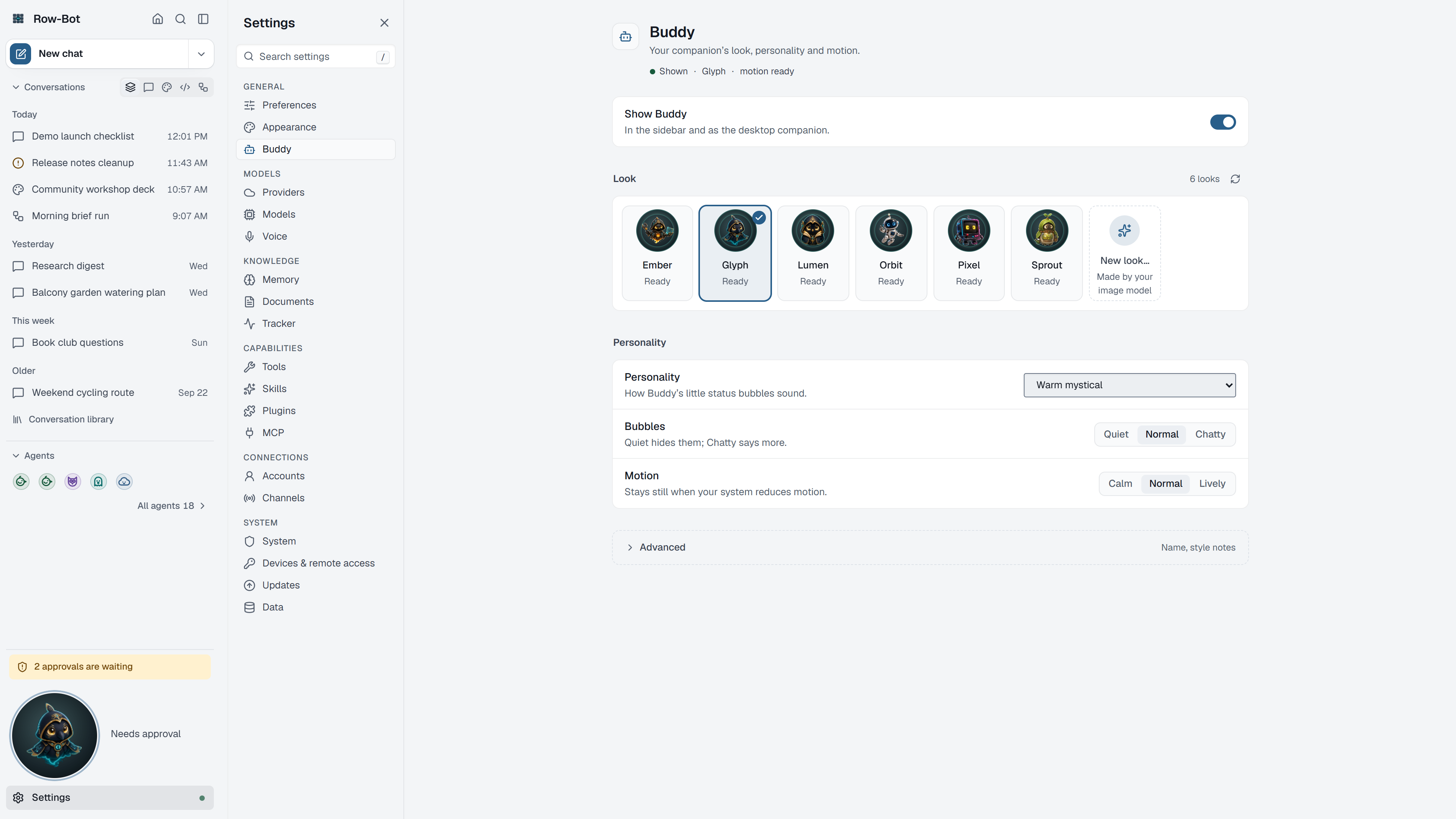
Where To Find It
Open Settings, then choose Buddy in the General group, or search for it with Find a setting.
Undock Buddy Onto The Desktop
- Turn on Show Buddy if the companion is hidden.
- Press and drag Buddy itself away from its sidebar dock. Releasing it back over the dock cancels the move; dragging it beyond the native Row-Bot window tears it off.
- Drop it near the part of the desktop where you want the overlay. Row-Bot keeps the fixed-size overlay inside the nearest monitor's usable work area, including multi-monitor layouts.
- Drag the overlay header whenever you want to reposition it.
Drag-to-undock requires the native Windows or macOS application. Browser/server mode, Linux browser-first launch, and the phone layout keep Buddy inside Row-Bot and do not create a native overlay window.
Message The Selected Thread
The title at the top of the overlay identifies the thread that will receive your next message. Buddy follows the conversation selected in the main Row-Bot window: switch conversations there and Buddy switches with you. The smaller line shows whether that thread is a Chat, Code, or Design conversation and what it is doing. If no thread is selected, Buddy follows your most recent conversation.
- Type into Message this thread.... Enter sends; Shift+Enter adds a line.
- The full composer and overlay share the saved draft for each thread. Switching threads loads that thread's draft without merging it into another conversation.
- Sending captures the thread and the Chat, Code, or Design context shown at that moment, so changing the main-window selection during a run does not silently retarget the request.
- After sending, the overlay shows current progress, the latest response, or an error. If a response was interrupted (for example by a restart), Resume continues it.
- Use Stop to stop the selected thread's active response. The overlay does not retry the turn by itself.
- Attachments, transcript history, tool traces, model selection, and microphone controls remain in the full Row-Bot thread. Use Open full thread when you need them.
The overlay is a text composer, not a second microphone session. Talk and Dictate remain in the full thread. A voice turn submitted there belongs to the same conversation and its progress can still appear in Buddy.
Review Approvals
Buddy never creates a separate approval policy. It projects the selected thread's existing gate:
- The current approval shows Deny, Details, and Approve in the overlay. Ctrl+Enter (Cmd+Enter on macOS) approves.
- Details opens the full thread so you can inspect the complete request before deciding.
- If the selected thread or pending generation no longer matches, Buddy opens the full thread instead of approving a stale request.
Overlay Menu And Lifecycle
- Open full thread restores the main Row-Bot window at the selected conversation.
- Dock Buddy closes the native overlay and returns Buddy to its sidebar dock.
- Hide Buddy hides the overlay without docking it. Use the tray's Show Buddy action to bring it back.
- While Buddy is torn off, closing the main Row-Bot window hides that window instead of quitting the app. Use Open full thread, Open Row-Bot in the tray, or the tray's quit action as appropriate.
- Tear-off is session-scoped. A fresh Row-Bot launch resets placement to the sidebar dock; a saved hidden preference remains hidden until you show Buddy.
- The overlay follows Row-Bot's appearance setting (System, Light, or Dark) and your device's reduced-motion setting.
Appearance Controls
The Buddy page follows the conversation you have open, because Buddy uses that conversation's profile and approvals; open a conversation first if it asks.
- Show Buddy shows or hides the companion.
- Look chooses a bundled or custom Buddy appearance. New look… makes one with your image model; Refresh looks reads them again.
- Personality changes the tone of Buddy's status cues.
- Bubbles changes how visual status appears.
- Motion chooses how lively Buddy is: Calm, Normal or Lively.
- Advanced Buddy settings holds Buddy's Name, optional Style notes for new looks, and Compact size.
Buddy's picture is also the speaker mark beside Row-Bot's replies in conversations.
Common Workflow
- Select the thread you want and confirm its name in the main window.
- Drag Buddy out of the sidebar and confirm the same name appears in the overlay header.
- Type a short message, review any approval, and use Open full thread when you need the complete transcript or tool details.
- Use Dock Buddy when you want it back in the sidebar.
- Make a new look only after an image model is ready in Settings › Models; choose Calm motion if animation is distracting.
What Is Saved
Buddy visibility, appearance, overlay position, and thread drafts are local app data. The overlay does not copy conversations into a second store. Generating a custom look may call a configured media provider depending on your setup.
Privacy And Safety
The overlay follows the same privacy and safety boundaries as the selected thread. A hosted model, tool, account, channel, MCP server, plugin, or media provider can still send data externally when that thread uses it. Undocking Buddy does not grant new permissions or bypass approvals.
Control-Level Reference
The generated Settings Controls reference lists every searchable setting on this page with its deep link, search keywords, and any dependency or security notes.
Troubleshooting
- If Buddy does not appear in the sidebar, turn on Show Buddy and reload the current page if needed.
- If a drag snaps back, start the gesture on Buddy itself and release away from the original dock. Drag-to-undock is unavailable outside the native Windows and macOS apps.
- If a hidden overlay is still torn off, use Show Buddy from the system tray.
- If Row-Bot's main window is hidden, use Open Row-Bot from the tray or Open full thread from Buddy.
- If the overlay shows the wrong conversation, select the intended thread in Row-Bot and verify the overlay title before sending.
- If an approval needs more context, choose Review or Details and decide in the full thread.
- Restart Row-Bot to reset desktop placement to the sidebar dock. Then enable Show Buddy if a saved hidden preference keeps it out of view.
- If making a new look fails, check that an image model is chosen and its provider is connected.