Row-Bot Interface
Row-Bot has one window with three parts: the sidebar on the left, the main area in the middle (Home, a conversation, the conversation library, or Settings), and, in a conversation, the panels for its designs and code folders on the right, with the terminal docked underneath when you open it.
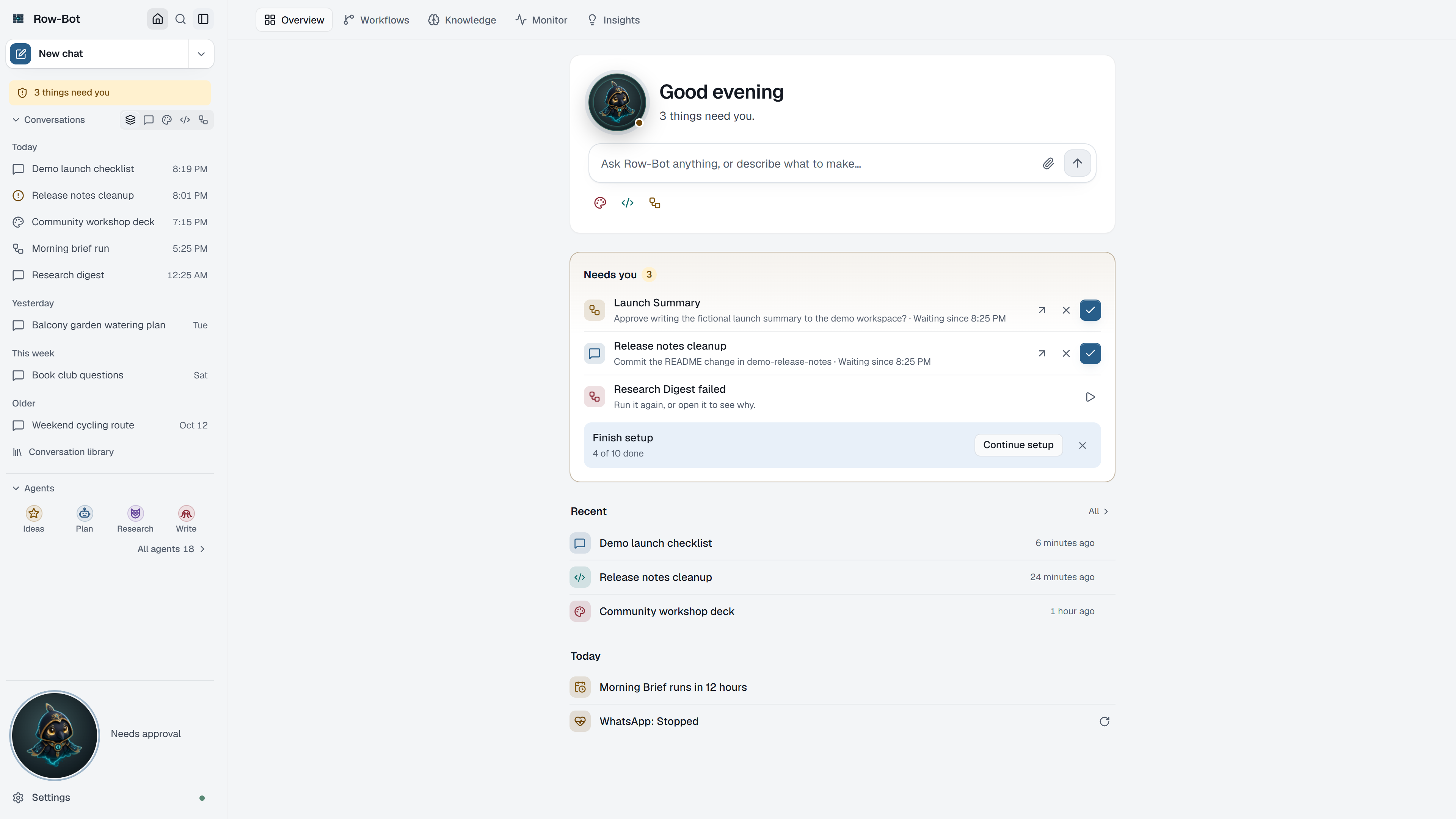
The Sidebar
- The top row holds Home (the house icon, also the Row-Bot logo), which opens the Home tabs: Overview, Workflows, Knowledge, Monitor and Insights (see Home); Search, which opens the command palette; and the button that collapses the sidebar.
- New chat starts a conversation. Its ▾ starts a chat with one of your favourite agents, or All agents… opens the Agents dialog.
- Conversations lists your conversations, pinned ones first. The icons beside the heading filter by type: All, Chats, Designs, Code and Workflows. A conversation's row shows when it is replying, waiting for approval, or has agents working.
- A row's pin button keeps it at the top; its ⋯ menu renames it, exports it as Markdown or PDF, or deletes it. After you confirm a delete, the chat leaves the list and Undo stays in the notice for a few seconds; the delete happens when the notice goes. A chat you started and never used isn't listed here or on Home (unless it's open); the Conversation library still lists it, and New chat reuses an empty chat it just made in this window instead of making another.
- Show all lists every conversation in the sidebar; Conversation library opens the full library to search, filter, export and clean up. See Chat.
- Agents, below the conversations, shows your favourite agents with each one's face and name (one click starts a chat with that agent; until you pin some, the built-in Everyday agents stand in) and All agents, which opens the Agents dialog with the whole profile library. See Profiles, Goals, And Agents.
- The attention indicator at the bottom appears only when something needs you: waiting approvals (with Approve and Deny in place), problems (opens Monitor), or an update: available, or Restart to update once it is downloaded and ready (opens Updates; see Updates).
- Buddy sits above Settings. In the native Windows and macOS apps, drag Buddy itself out of the sidebar to undock its desktop overlay. See Settings: Buddy.
- Settings opens the settings pages. See Settings.
Collapse the sidebar to a narrow rail with its toggle; the rail keeps New chat, Home, Agents, the attention indicator, Settings and Buddy as icons.
A Conversation
The conversation's header shows its name (click it to rename), Find to search the conversation, Export, and Conversation details. The details card beside the conversation lists what the conversation is Working on (its designs and code folders), its Outputs, its Goal, and the Agents it started. A delegated agent's own conversation shows the way back to its parent in the header. See Chat.
Panels And The Terminal
A design opens in a Design panel and a code folder in a Developer panel, beside the conversation. Open them from the details card or the header's Open panel menu; drag the divider to resize. See Designs and Code Folders.
In the desktop app, the terminal opens docked under the conversation with the terminal button, Open panel › Interactive terminal, or Ctrl+`. See Tools, Approvals, And Terminal.
The Command Palette
Press ⌘K (Ctrl+K on Windows and Linux), or the search button in the sidebar's top row, to open the command palette. Type what you want in your own words:
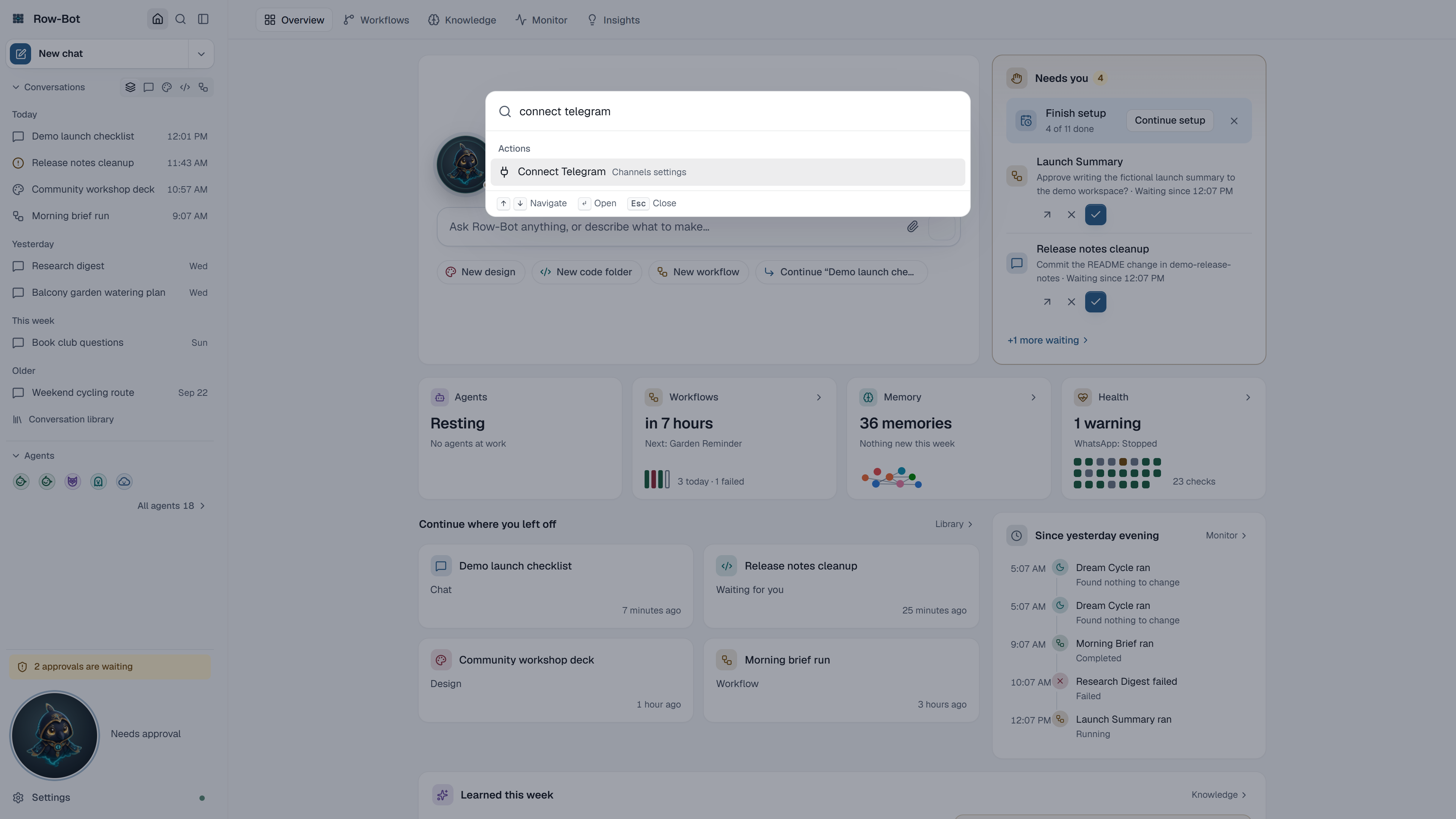
- Requests such as "connect a model", "phone", "connect telegram", "add mcp server", "install a skill", "change model", "connect gmail" or "back up" go straight to the exact place it is done. Words can come in any order.
- Conversations and messages are found by title and by words in their messages.
- Commands open Home tabs, the conversation library, Setup Center, Settings or the Agents dialog, and toggle the sidebar, the details card or the terminal. Each shows its shortcut.
- Settings pages and rows open at the exact row.
- Switches flip a setting in place, showing its current state, with Undo afterwards: for example "turn off shell", "turn on developer tools", the browser tool, Dream Cycle, learning new skills, or tracking. "dark mode", "light mode" and "follow the system appearance" change this device's appearance.
- Agents and workflows: "Chat with …" starts a chat with an agent; "Run …" runs a workflow.
Enter runs the top result only when it matches what you typed; otherwise choose a result with the arrow keys.
Keyboard Shortcuts
| Shortcut | Action |
|---|---|
| ⌘K / Ctrl+K | Open the command palette |
| ⌘⇧O / Ctrl+Shift+O | New chat |
| ⌘. / Ctrl+. | Show or hide the conversation details card |
| Ctrl+` | Open or close the terminal |
| / | Find a setting, on a Settings page |
| ⌘Enter / Ctrl+Enter | Approve the focused approval |
| ⌘Z and ⌘⇧Z / Ctrl+Z and Ctrl+Shift+Z | Undo and redo in the Design panel |
| Esc | Close the palette, a menu or a dialog |
On A Phone Or Tablet
On a narrow screen, the sidebar becomes a drawer opened from the top bar, panels open as full-screen sheets, and the conversation header's ⋯ menu holds Find, Conversation details, Export, the panels and the command palette. See Phone And Native Desktop.
What Is Saved
Conversations, their names, models, profiles, workflows, knowledge, settings and logs are saved in the local Row-Bot data directory. Panel sizes, the terminal's height, favourite agents and appearance are remembered on each device.
Troubleshooting
- If a conversation is missing from the sidebar, use Show all, the type filter, or the conversation library's search.
- If a panel looks stale, close and reopen it from the details card.
- If a button is disabled, check the related Settings page and Monitor for readiness messages.