Voice And Buddy
Voice and Buddy make Row-Bot feel less like a text box and more like a desktop companion. Voice handles speech input and optional spoken output. Buddy reflects app state and, in the native Windows and macOS apps, can be dragged from the sidebar into a compact always-on-top desktop overlay.
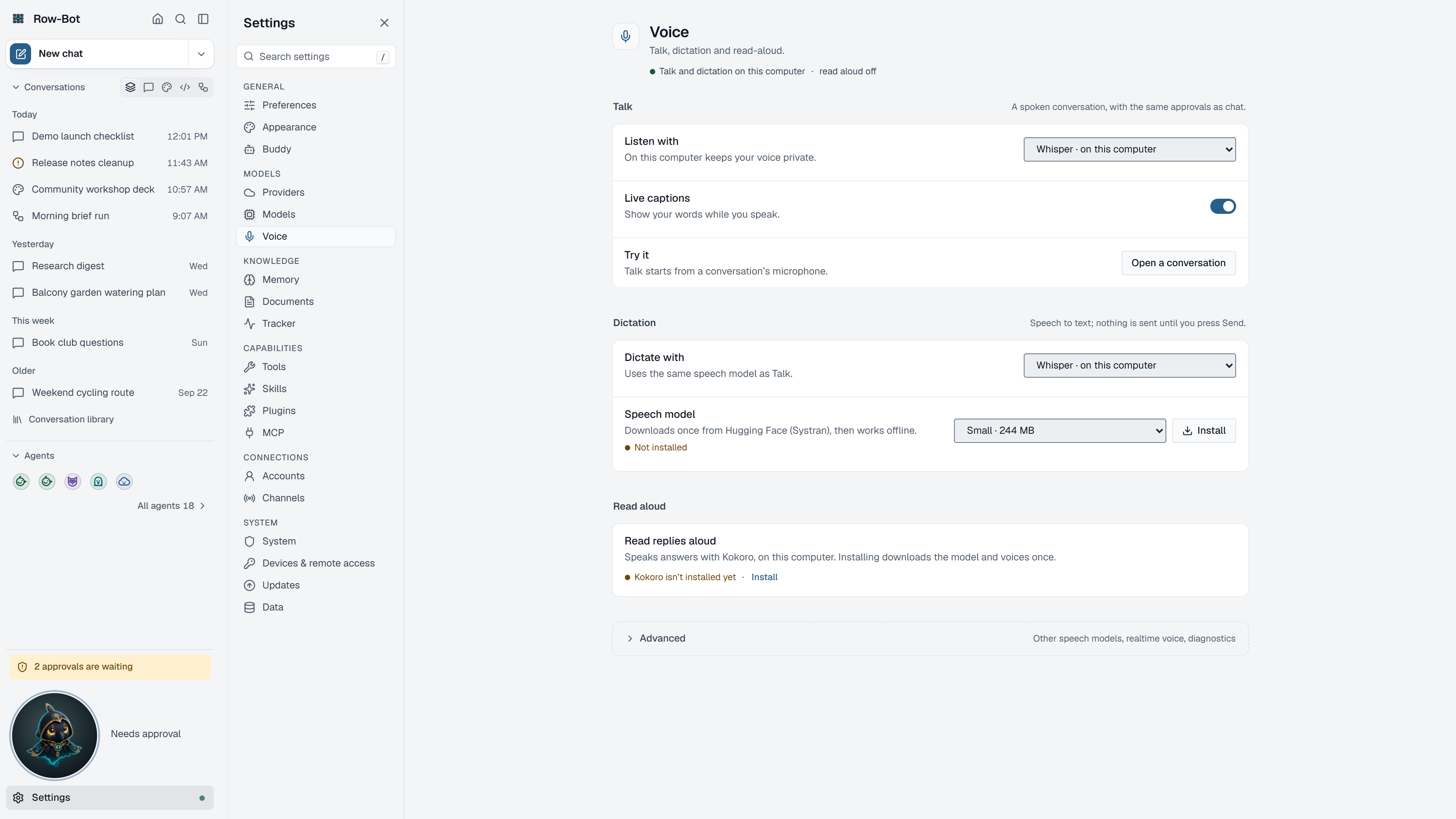
Voice Modes
- Dictate turns speech into composer text so you can review it before sending.
- Talk submits spoken input more directly for conversation.
- Read-aloud speaks assistant responses when enabled.
- Local voice uses Whisper by default, or the optional SenseVoice Small engine after you install it explicitly.
- Realtime voice uses a compatible provider for lower-latency spoken conversation.
Choosing A Mode
Use Dictate when accuracy and review matter. Use Talk when you want a faster hands-light conversation. Use local voice when privacy and offline-style behavior matter. Whisper remains the default local transcription engine. SenseVoice is an optional alternative on Windows, Linux, and Apple Silicon macOS; Intel macOS continues to use Whisper. Use realtime voice when latency matters and you accept internet access, provider requirements, and provider cost.
Optional SenseVoice Setup
Open Settings -> Voice, find SenseVoice under Voice models, and choose Install SenseVoice Small. Then choose it under Speech engine (Talk listens with or Dictation listens with). Installation is an explicit approximately 940 MB download from ModelScope. Row-Bot verifies the contained snapshot before saving it under the active data directory, and normal transcription then uses that local snapshot with update checks disabled. Startup, readiness checks, and ordinary transcription never download or repair the model automatically.
Devices And Diagnostics
Select the microphone and output device in Settings -> Voice. Run diagnostics when audio is silent, delayed, or routed to the wrong device.
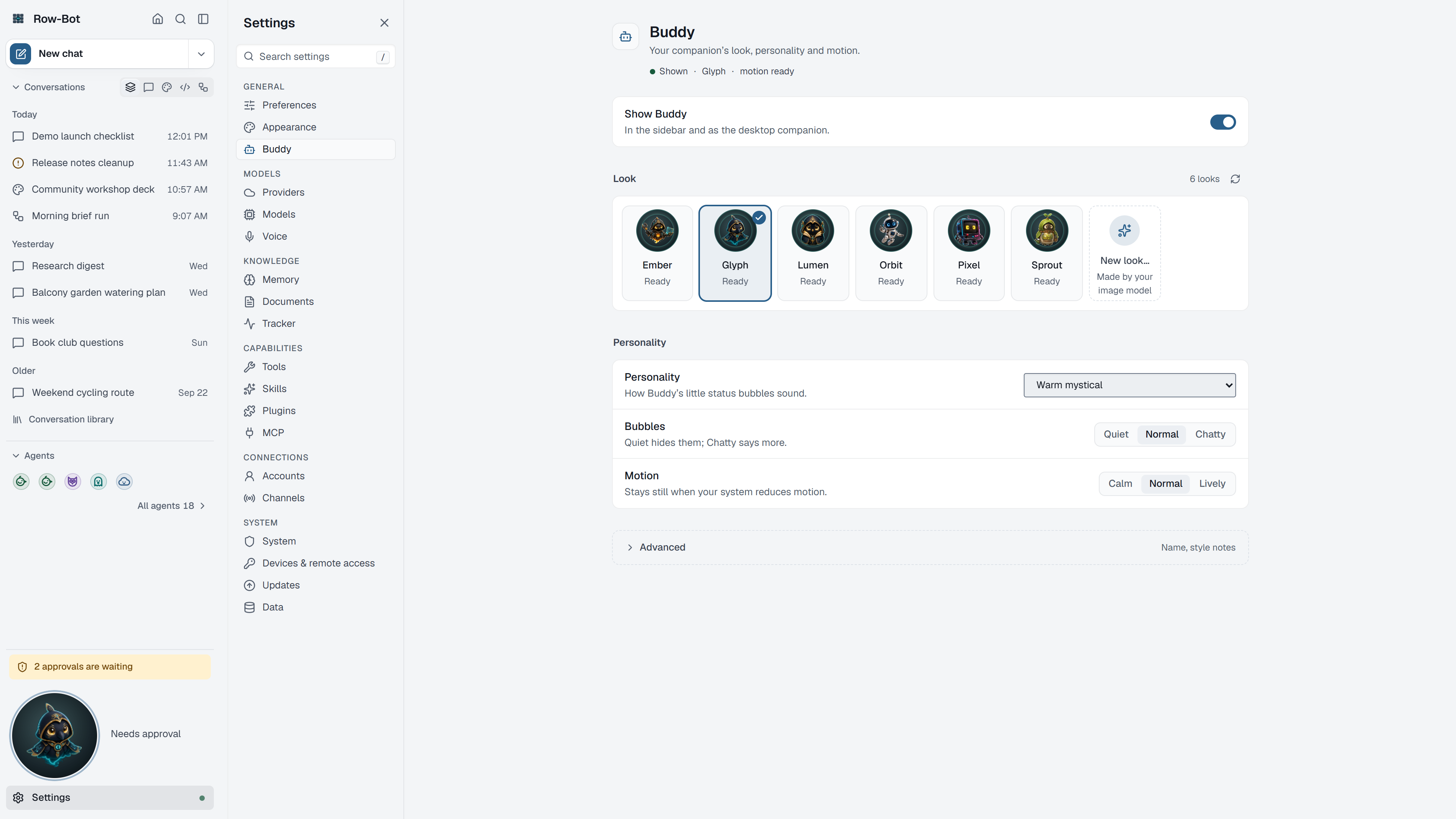
Buddy Controls
- Show Buddy controls companion visibility.
- Drag to tear off moves Buddy itself from its sidebar dock into the native desktop overlay. Releasing over the dock cancels the drag.
- The overlay follows the selected conversation, whether it is a chat, a design or a code folder, and shares its saved draft, current response, tools, and approval mode.
- Enter sends and Shift+Enter adds a line. Stop stops the selected thread's active response.
- Simple approvals can be approved or denied in Buddy. Complex approvals open the full thread for review.
- Open full thread, Collapse/Expand, Dock Buddy, and Hide Buddy are in the overlay menu.
- Tear-off is session-scoped; restarting Row-Bot returns placement to the normal sidebar dock. Browser/server mode does not create a native overlay.
- Personality changes the tone of Buddy cues, and Bubbles changes how status appears.
- Look chooses a bundled or custom appearance; New look… makes one with your image model.
- Motion chooses how lively Buddy is: Calm, Normal or Lively.
See Settings: Buddy for the complete drag, messaging, approval, tray-recovery, and troubleshooting walkthrough.
Talk To Buddy
The desktop overlay accepts typed messages for the thread named in its header. It does not contain a separate microphone control: Talk and Dictate remain in the full Row-Bot thread, where device state, transcription, and provider disclosure are visible. Use Open full thread, start Talk or Dictate there, and Buddy will continue reflecting that selected conversation.
Use Dictate when you want to review speech as text before sending. Use Talk when you want the configured voice path to submit conversation turns. Undocking Buddy does not change which voice provider is used, create a new voice session, or bypass tool approvals.
Privacy And Safety
Voice input can become chat text. Realtime voice and provider-backed speech may send audio or transcript data to the selected provider. Installing SenseVoice contacts ModelScope for the requested model and standard SDK metadata, but Row-Bot does not send audio, prompts, or usage data; inference stays local after installation. Buddy preferences and assets are local, but custom generation may call a configured media provider.
Troubleshooting
- If Dictate records nothing, check microphone selection and permissions.
- If Talk sends too quickly, use Dictate instead.
- If SenseVoice reports missing packages, install the
voiceextra for a source checkout or repair the packaged app. If its snapshot is missing or incomplete, reinstall it from Voice settings. - If SenseVoice is unavailable on Intel macOS, select local Whisper instead.
- If realtime voice is unavailable, check Providers and Voice Models.
- If Buddy does not appear, enable Show Buddy or use the tray's Show Buddy action when it is torn off.
- If Buddy will not undock, use the native Windows or macOS app and start the drag on Buddy itself. Remote browsers and browser/server mode keep it docked.