Docker And VPS Operations
The official container runs one single-owner, multi-device Row-Bot instance. It is not a multi-user service or a hostile tenant-isolation boundary. Every browser, including one on the Docker host, must claim a one-time invitation before it receives a revocable owner session.
The default Compose topology publishes only 127.0.0.1:8080, runs the application as UID/GID 10001 with a read-only root filesystem, and keeps private state in separate named data and encryption-key volumes. It does not mount the Docker socket, host devices, a desktop display, or host audio.
Prerequisites
- Docker Engine or Docker Desktop with Linux containers and Docker Compose.
- Enough disk for the full image plus the
/datavolume. Models, managed runtimes, browser outputs, and caches can grow after explicit use; Row-Bot does not promise one fixed capacity figure. - For public VPS access: Linux, Docker Compose 2.24.4 or newer, DNS you control, and a host-managed HTTPS proxy or Tailscale installation.
Release images are built from tagged source in GitHub Actions with the locked dependency set. Native amd64 and arm64 jobs run the isolated authenticated-container smoke before the release manifest is created, and the registry exposes a digest for immutable pins. The smoke uses bounded request timeouts and requires two consecutive readiness samples; it retries only safe GET probes, never repeats a state-changing POST, and limits failure output to redacted container state and log tails.
Download A Release-Pinned Compose File
You do not need to clone the repository. Choose a released version, create a private deployment directory, and download the Compose file from the same tag:
export ROW_BOT_VERSION=X.Y.Z
mkdir -p row-bot-docker
cd row-bot-docker
curl -fsSLo compose.yaml \
  "https://raw.githubusercontent.com/siddsachar/row-bot/v${ROW_BOT_VERSION}/deploy/docker/compose.yaml"
export ROW_BOT_IMAGE="ghcr.io/siddsachar/row-bot:${ROW_BOT_VERSION}"
docker buildx imagetools inspect "${ROW_BOT_IMAGE}"
docker compose -f compose.yaml config
Replace X.Y.Z with a release that lists the Row-Bot container in GitHub Packages. A source tag can exist without a published container, so confirm the image before starting. Pull requests and manually dispatched container checks verify builds but do not publish them; publishing happens only after a GitHub Release is published. If the registry reports manifest unknown for the version you chose, select a release with a container or use Build From Source.
Keep ROW_BOT_VERSION, the downloaded file, and ROW_BOT_IMAGE aligned. The Compose default is ghcr.io/siddsachar/row-bot:latest, but an explicit version is easier to audit and roll back. Stable releases also update latest; prereleases do not.
For an immutable image pin, replace the tag with the digest published for that release:
export ROW_BOT_IMAGE='ghcr.io/siddsachar/row-bot@sha256:RELEASE_MANIFEST_DIGEST'
docker compose -f compose.yaml config
Account Credential Persistence Is Automatic
Headless containers do not have a desktop keyring. On every docker compose up, a short-lived, network-disabled initializer creates a random ROW_BOT_SECRET_STORE_KEY only when the project-scoped row_bot_secrets volume is empty. The application receives that volume read-only and uses the key to encrypt ChatGPT/Codex tokens and other owner-entered secrets under /data/secure-secrets.
There is no key to create or environment value to set for the normal Compose path. Keep both named volumes for restart, container replacement, upgrade, and rollback, and back up the key separately from /data. Advanced unattended deployments can replace the generated key volume with an operator-managed read-only directory as described in Read-Only Secret Files.
First Start And Owner Invitation
A fresh up pulls the image only when it is absent locally, creates the data and encryption-key volumes, initializes the key without network access, and starts the foreground server:
docker compose -f compose.yaml up -d
docker compose -f compose.yaml ps
curl -fsS http://127.0.0.1:8080/healthz
curl -fsS http://127.0.0.1:8080/readyz
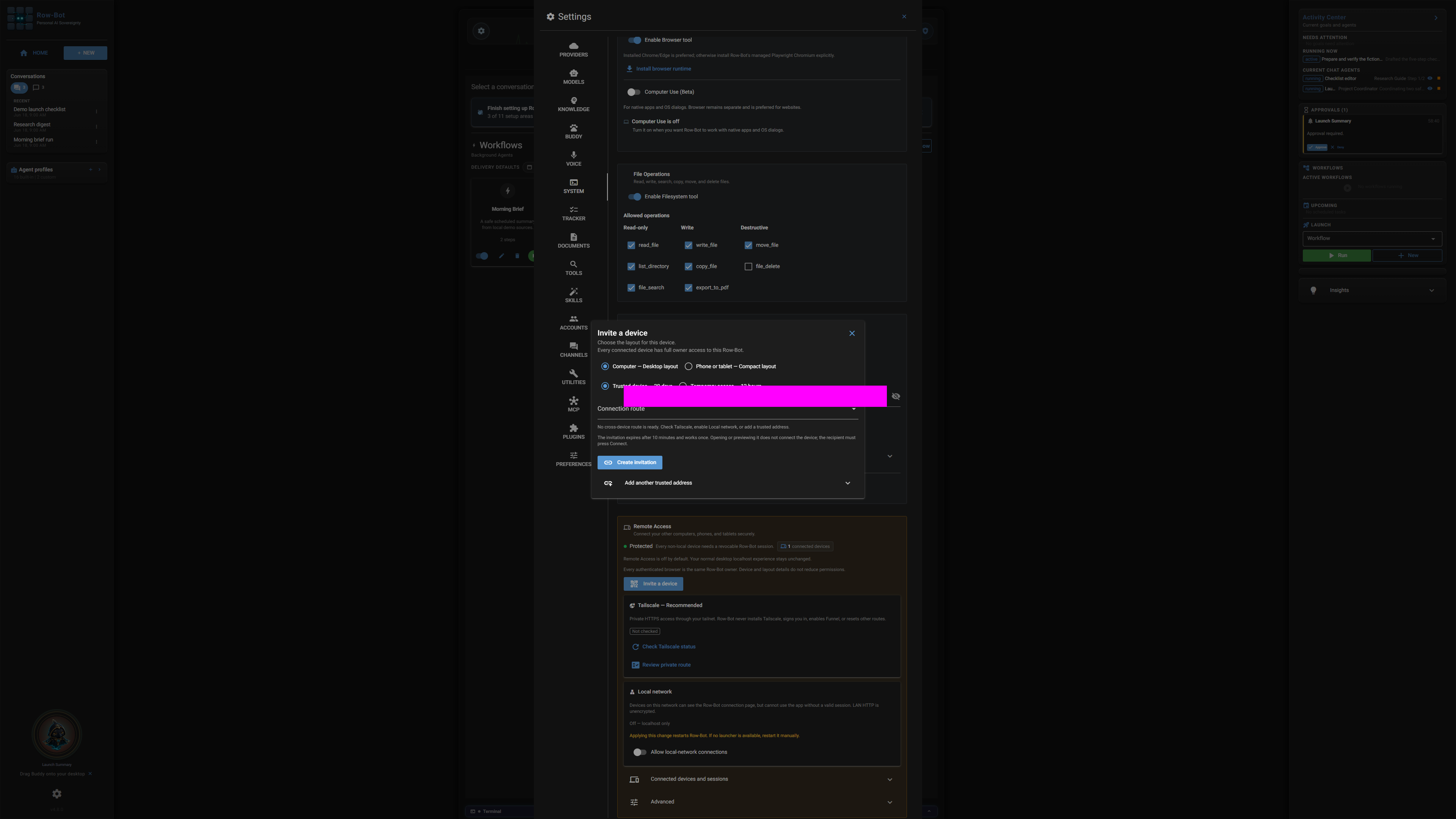
The unauthenticated root shows a neutral connection flow. Create the first invitation from a private terminal; the output is a one-time secret:
docker compose -f compose.yaml exec row-bot \
  row-bot access invite --layout desktop --origin http://127.0.0.1:8080
Open the printed URL, review the confirmation, and select Connect. Use --layout compact for phone presentation. Both layouts grant the same owner authority.
Useful secret-free checks are:
docker compose -f compose.yaml exec row-bot row-bot access list
docker compose -f compose.yaml exec row-bot row-bot access doctor --host 127.0.0.1
docker compose -f compose.yaml logs --tail 200 row-bot
Do not paste invitation URLs, cookies, provider credentials, or unredacted logs into issues or chat.
Finish Setup And Install Private Knowledge Search
The normal first-launch wizard is the same in desktop, source, and Docker installations. It offers Mixedbread Embed Large v1, a separate local model used for semantic memory and document search, as a checked-by-default 675 MB download. The download begins only when you finish setup, requires internet access to Hugging Face, and does not upload documents or memories.
In Docker, the downloaded files live in the /data cache, so the named volume preserves them across restarts and container replacement. Keep the option selected for the recommended semantic search experience. If you skip it, Row-Bot still works and uses bounded lexical and graph fallback until you install the model from Settings → Documents.
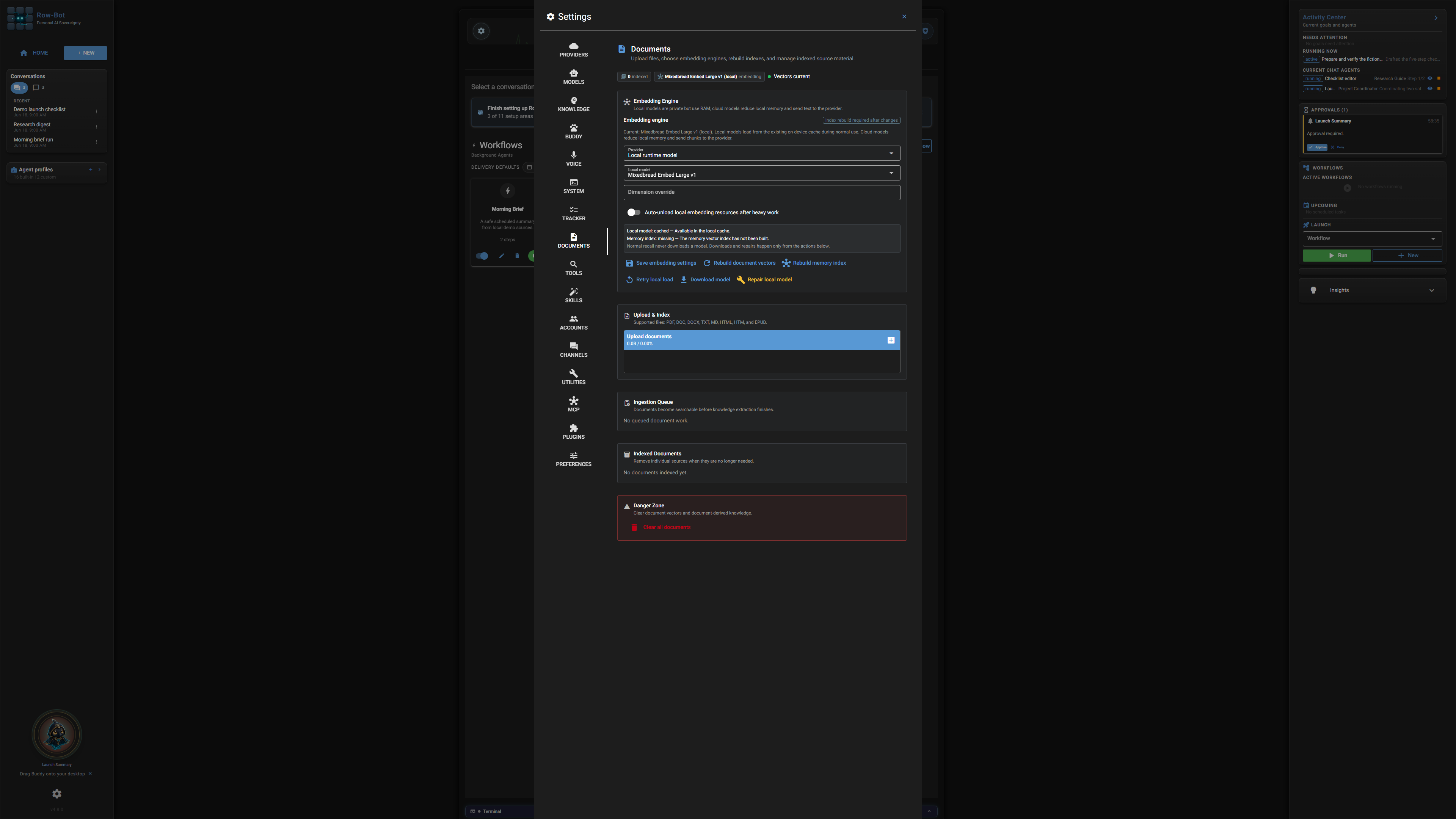
After changing an embedding provider or model, rebuild the document and memory vectors from this screen. A cloud embedding provider is a separate opt-in choice and sends the indexed text to that provider; the recommended default stays local after the initial download.
Stop, Restart, Reboot, And Replace
Normal stop and start retain the container and named volume:
docker compose -f compose.yaml stop row-bot
docker compose -f compose.yaml start row-bot
restart: unless-stopped lets an existing service return when the Docker daemon starts after a host reboot. After every reboot, verify ps, /healthz, /readyz, and an existing authenticated browser.
Replacing only the container preserves the same instance identity, settings, sessions, conversations, and selected caches in /data:
docker compose -f compose.yaml up -d --force-recreate row-bot
Multiple Isolated Instances
Use a different Compose project name and host port for each instance. Compose project names isolate the containers, networks, and named data and encryption-key volumes:
docker compose --project-name row-bot-main \
  -f compose.yaml up -d

ROW_BOT_HOST_PORT=8081 docker compose --project-name row-bot-lab \
  -f compose.yaml up -d
Create invitations for http://127.0.0.1:8080 and http://127.0.0.1:8081, respectively. Every project automatically receives its own data and encryption-key volumes. Do not copy one instance's access database or encryption key into another unless you are deliberately restoring that same instance. Each fresh instance has a different identity, so its cookies and owner sessions remain isolated even when the hostname is the same.
Consistent Offline Backup
Treat a backup as private user data. Stop the service before copying the whole volume so related SQLite files are one consistent set. Use a disposable helper container to create archives; do not use docker compose cp for the complete /data tree because model caches can contain symbolic links that a Windows host cannot reproduce.
The helper has no network, receives the source volumes read-only, and adds only the capability needed to read every file in the stopped volume:
backup_dir="$(pwd)/backups/row-bot-$(date -u +%Y%m%dT%H%M%SZ)"
mkdir -p "$backup_dir"
docker compose -f compose.yaml stop row-bot
row_bot_container="$(docker compose -f compose.yaml ps -a -q row-bot)"
docker run --rm \
  --network none \
  --read-only \
  --user 0:0 \
  --cap-drop ALL \
  --cap-add DAC_READ_SEARCH \
  --security-opt no-new-privileges \
  --volumes-from "${row_bot_container}:ro" \
  --mount "type=bind,src=${backup_dir},dst=/backup" \
  --entrypoint sh \
  "${ROW_BOT_IMAGE}" \
  -c 'set -eu; tar -C /data -czf /backup/data.tar.gz .; tar -C /run/secrets -czf /backup/secrets.tar.gz ROW_BOT_SECRET_STORE_KEY'
docker compose -f compose.yaml start row-bot
Run the final start command even if archive creation reports an error. On Windows PowerShell, use $backupDir = (New-Item -ItemType Directory -Force "backups\\row-bot-$((Get-Date).ToUniversalTime().ToString('yyyyMMddTHHmmssZ'))").FullName, $rowBotContainer = docker compose -f compose.yaml ps -a -q row-bot, backticks instead of backslashes for line continuation, $backupDir in the bind mount, and $env:ROW_BOT_IMAGE as the image value. The archive work still runs inside Linux and therefore preserves cache symlinks.
Encrypt and protect both data.tar.gz and secrets.tar.gz with your normal backup system. Record the image tag and digest beside them. Encrypted server credentials under /data/secure-secrets are usable only with the matching ROW_BOT_SECRET_STORE_KEY; protect both archives. Other credentials supplied through an operator-managed read-only directory need their own recovery procedure.
Test a restore under a different Compose project name and port. This creates a separate named volume and does not overwrite the live instance:
export ROW_BOT_HOST_PORT=18080
restore_backup_dir="$(cd ./backups/RESTORE_SET && pwd)"
docker compose --project-name row-bot-restore -f compose.yaml \
  create secret-store-init row-bot
restore_app_container="$(docker compose --project-name row-bot-restore -f compose.yaml ps -a -q row-bot)"
restore_init_container="$(docker compose --project-name row-bot-restore -f compose.yaml ps -a -q secret-store-init)"
docker run --rm \
  --network none \
  --read-only \
  --user 0:0 \
  --cap-drop ALL \
  --cap-add CHOWN \
  --cap-add FOWNER \
  --cap-add DAC_OVERRIDE \
  --security-opt no-new-privileges \
  --volumes-from "${restore_app_container}" \
  --mount "type=bind,src=${restore_backup_dir},dst=/backup,readonly" \
  --entrypoint sh \
  "${ROW_BOT_IMAGE}" \
  -c 'set -eu; tar -C /data -xzf /backup/data.tar.gz'
docker run --rm \
  --network none \
  --read-only \
  --user 0:0 \
  --cap-drop ALL \
  --cap-add CHOWN \
  --cap-add FOWNER \
  --cap-add DAC_OVERRIDE \
  --security-opt no-new-privileges \
  --volumes-from "${restore_init_container}" \
  --mount "type=bind,src=${restore_backup_dir},dst=/backup,readonly" \
  --entrypoint sh \
  "${ROW_BOT_IMAGE}" \
  -c 'set -eu; tar -C /run/secrets -xzf /backup/secrets.tar.gz'
docker compose --project-name row-bot-restore -f compose.yaml up -d
curl -fsS http://127.0.0.1:18080/readyz
docker compose --project-name row-bot-restore -f compose.yaml exec row-bot \
  row-bot access doctor --host 127.0.0.1
Set ROW_BOT_IMAGE to the recorded image before restoring. On PowerShell, resolve the backup directory with $restoreBackupDir = (Resolve-Path '.\\backups\\RESTORE_SET').Path, capture the two container IDs with $restoreAppContainer and $restoreInitContainer, and use those variables in the same helper commands. Inspect the restored data and authentication before changing any proxy or production route. Remove the isolated project with docker compose --project-name row-bot-restore -f compose.yaml down --volumes only after you have finished the restore test.
Explicit Upgrade And Rollback
Upgrades are never automatic. Take an offline backup, choose the new version or digest, pull it explicitly, recreate, and run checks:
export ROW_BOT_IMAGE='ghcr.io/siddsachar/row-bot:NEW_VERSION'
docker compose -f compose.yaml pull row-bot
docker compose -f compose.yaml up -d row-bot
docker compose -f compose.yaml ps
curl -fsS http://127.0.0.1:8080/readyz
docker compose -f compose.yaml exec row-bot \
  row-bot access doctor --host 127.0.0.1
Also verify an existing browser session and a normal streamed response. For rollback, use the previous image digest with its matching pre-upgrade data backup in an isolated project first. Database changes can make an old image incompatible with state already opened by a newer one.
Read-Only Secret Files
The default stack already provides encrypted persistence for secrets entered in the UI. For centrally managed or pre-provisioned deployments, you can instead keep one allowlisted setting value per file in an absolute private host directory outside the repository. This override replaces the automatic key volume, so the directory must also contain ROW_BOT_SECRET_STORE_KEY. Download the example override from the same release tag:
curl -fsSLo compose.secrets.yaml.example \
  "https://raw.githubusercontent.com/siddsachar/row-bot/v${ROW_BOT_VERSION}/deploy/docker/compose.secrets.yaml.example"
export ROW_BOT_SECRETS_HOST_DIR=/srv/row-bot/secrets
sudo install -d -o 10001 -g 10001 -m 0700 "$ROW_BOT_SECRETS_HOST_DIR"
openssl rand -hex 32 | sudo tee \
  "$ROW_BOT_SECRETS_HOST_DIR/ROW_BOT_SECRET_STORE_KEY" >/dev/null
sudo chown 10001:10001 \
  "$ROW_BOT_SECRETS_HOST_DIR/ROW_BOT_SECRET_STORE_KEY"
sudo chmod 0400 \
  "$ROW_BOT_SECRETS_HOST_DIR/ROW_BOT_SECRET_STORE_KEY"
docker compose -f compose.yaml -f compose.secrets.yaml.example config
docker compose -f compose.yaml -f compose.secrets.yaml.example up -d
Restrict the host directory to the Docker operator and container UID/GID 10001. The override mounts only /run/secrets:ro; it does not put values into Compose environment, labels, command lines, or image layers. Externally managed provider and channel values remain read-only in Settings and are never copied into /data.
ROW_BOT_SECRET_STORE_KEY is different: it is a 32-byte master key encoded as exactly 64 hexadecimal characters. The default initializer generates it automatically in the project-scoped key volume; the override above makes you its operator. When a desktop keyring is unavailable, Row-Bot uses it to encrypt in-app OAuth tokens and other owner-entered secrets under /data/secure-secrets. This allows ChatGPT/Codex and other rotating OAuth credentials to survive a process restart or container replacement without placing the tokens in environment variables. The master key itself remains only in /run/secrets and is never copied into /data.
Keep the same key for backup, restore, upgrade, and rollback. A missing key leaves newly entered credentials session-only; an invalid or changed key fails closed and cannot decrypt, replace, or delete existing encrypted records. There is no automatic key rotation. To replace a lost key, reconnect the affected accounts and re-enter secrets after deliberately starting with an empty encrypted secret directory.
Build From Source
Source builds are opt-in and require a repository checkout. The build override changes only the image source; the base file remains authoritative for runtime and security settings:
git clone https://github.com/siddsachar/row-bot.git
cd row-bot
docker compose \
  -f deploy/docker/compose.yaml \
  -f deploy/docker/compose.build.yaml \
  build row-bot
docker compose \
  -f deploy/docker/compose.yaml \
  -f deploy/docker/compose.build.yaml \
  up -d
Record the source revision and resulting image digest before relying on a source build.
Linux VPS With Host Caddy
This topology uses host networking only in the VPS override. Row-Bot binds 127.0.0.1:8080; host Caddy terminates HTTPS on ports 80/443 and connects from IPv4 loopback. Nothing publishes container port 8080 externally.
- Point the dedicated DNS name at the VPS.
- Allow inbound TCP 80/443 in the host and provider firewalls; do not expose 8080.
- Install and operate Caddy on the host.
- Download the release-matched override and Caddy example:
curl -fsSLo compose.vps.yaml \
  "https://raw.githubusercontent.com/siddsachar/row-bot/v${ROW_BOT_VERSION}/deploy/docker/compose.vps.yaml"
curl -fsSLo Caddyfile.row-bot \
  "https://raw.githubusercontent.com/siddsachar/row-bot/v${ROW_BOT_VERSION}/deploy/reverse-proxy/Caddyfile.example"
Set the exact browser-facing origin and host, then validate the merged configuration:
export ROW_BOT_PUBLIC_URL='https://row-bot.example.com'
export ROW_BOT_ALLOWED_HOSTS='row-bot.example.com'
docker compose -f compose.yaml -f compose.vps.yaml config
docker compose -f compose.yaml -f compose.vps.yaml up -d
curl -fsS http://127.0.0.1:8080/readyz
The override sets ROW_BOT_TRUSTED_PROXY_CIDRS=127.0.0.1/32 exactly. Replace the example hostname in Caddyfile.row-bot, integrate that site block into the host's Caddy configuration, then validate and reload Caddy using the host package's service procedure. Do not broaden proxy trust to a private range or accept caller-supplied forwarding metadata.
Create the invitation for the exact HTTPS origin:
docker compose -f compose.yaml -f compose.vps.yaml exec row-bot \
  row-bot access invite --layout desktop \
  --origin https://row-bot.example.com
From an external browser, confirm the HTTPS connection page, claim the invitation, keep the UI open through a streamed response, and verify its WebSocket remains connected. Reboot the VPS during a maintenance window and repeat DNS, TLS, readiness, authenticated-session, WebSocket, and streaming checks.
Host-Managed Tailscale Serve
Tailscale runs on the Linux host, not in the Row-Bot container. Use the VPS override so host Tailscale reaches Row-Bot over exact loopback, but do not install or invoke the Tailscale CLI inside the container.
Set the host's actual private HTTPS name:
export ROW_BOT_PUBLIC_URL='https://row-bot-host.example-tailnet.ts.net'
export ROW_BOT_ALLOWED_HOSTS='row-bot-host.example-tailnet.ts.net'
docker compose -f compose.yaml -f compose.vps.yaml up -d
sudo tailscale serve --bg http://127.0.0.1:8080
tailscale serve status
Create an invitation for that exact https://...ts.net origin. Tailnet membership supplies private reachability; it does not replace Row-Bot's invitation, session, or revocation controls. The container neither contains nor controls the host Tailscale CLI, Funnel, login, firewall, or route lifecycle.
Trusted Sessions And Recovery
A trusted browser session lasts up to 30 days. While an authenticated owner UI remains active, the browser checks at startup and every 12 hours. In the final seven days, the server atomically renews that trusted session to 30 days. Temporary 12-hour sessions and migrated legacy sessions never renew.
An inactive trusted browser can still expire after 30 days. If all sessions are lost, recover only from a trusted host terminal or SSH session:
docker compose -f compose.yaml exec row-bot \
  row-bot access invite --layout desktop --origin YOUR_EXACT_ORIGIN
Revoked, expired, or device-revoked credentials stay invalid.
Developer And Headless Boundaries
There are three distinct Developer execution cases:
- Row-Bot installed on a host: Docker Sandbox can use the host's supported Docker runtime when it is available. Local mode remains an explicit workspace choice.
- The official Row-Bot application container: Developer Docker Sandbox is unavailable and fails closed. The image contains no Docker daemon or CLI, and you must not mount the host Docker socket. Local mode can use only a workspace path you explicitly mount into the application container.
- An approved Custom Tool inside the application container: risky approved execution deliberately uses Local mode inside that same container against the selected visible path. It is not a nested Docker sandbox and is not a silent fallback from a requested Docker workspace.
The container has no native tray/window, native desktop Computer Use, physical host microphone or speaker, camera, display server, or GPU by default. Browser-local voice and bundled headless browser automation remain available. Selected local models and runtimes are explicit downloads into /data; cache growth depends on what the owner installs and uses.
Remove The Deployment
Ordinary removal keeps private state:
docker compose -f compose.yaml down
To delete both named volumes and all instance state deliberately, first verify the Compose project and backup, then run:
docker compose -f compose.yaml down --volumes
Those volume deletions remove both private data and the generated encryption key and are not recoverable unless you have a tested backup. External secret directories and backup directories are separate and are never removed by these Compose commands.